What mouse latency means
Mouse latency, or input lag, is the time it takes for a mouse command to produce a response. A mouse that reacts quickly has low latency; a noticeably delayed response indicates higher latency.

A small delay may be tolerable during ordinary work, but even a few milliseconds can be noticeable in games. A delayed shot, for example, can determine the outcome of an encounter. Lag can also interrupt concentration and waste time during everyday use.
Possible causes of mouse lag
For wired mice, possible causes include pulled wires, loose connections and outdated drivers. Wireless models may suffer from battery problems, Bluetooth interference, driver or BIOS issues, or faulty hardware. Graphics cards can also contribute to mouse lag.
A mouse latency test checks responsiveness and the delay involved in completing an action. Because several problems can produce similar symptoms, testing before attempting fixes helps establish whether the mouse appears slow.
Online tests for Windows 11/10
Compare cursor positions
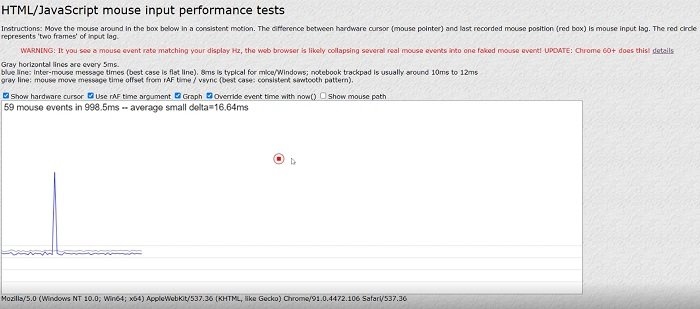
This online latency test is described as one of the more accurate options. Open its webpage and move the pointer steadily. The tool compares the hardware cursor with the last recorded mouse position.
In the example above, a red box appears beside the pointer. According to the tool, the gap between them represents mouse lag, while the red circle represents two frames of mouse input delay.
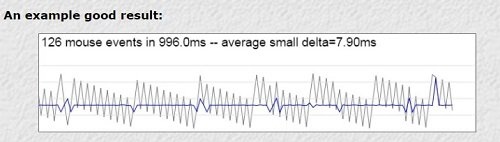
The example of a good result shows an average small delta of 7.90ms, which is the time per mouse event. The stated target for the best latency on a Windows PC is around 8ms.
Check reaction time with Human Benchmark

Human Benchmark is another online option, though it measures reaction time and assigns a score rather than simply measuring mouse delay. Sign-up is required to perform the tests.
Human Benchmark reports an average (median) reaction time of 273 milliseconds and attributes higher results to mouse lag. It also notes that computer system latency affects the results.

- Log in and choose the reaction test from the main overview.
- Wait while the red screen displays the instruction to wait for green.
- Click as soon as the screen turns green to receive an immediate result.
The reaction-time tool recommends repeated attempts for more accurate results. You can also compare results using wired and wireless mice.
These tests provide a way to examine responsiveness before addressing a mouse that lags or freezes. Remember that reaction-test results also reflect the computer system's latency, not just the mouse.