Display problems on Windows often involve a corrupted graphics driver. An update may restore normal operation, but some cases require a clean installation. For NVIDIA graphics cards in Windows 11/10, you can use Display Driver Uninstaller or the NVIDIA driver installer itself.
Download the NVIDIA driver first
Before starting, obtain the latest driver for your graphics card from the official NVIDIA website. When you open NVIDIA’s website, you will find “Get automatic driver updates” and “Manual driver search”.
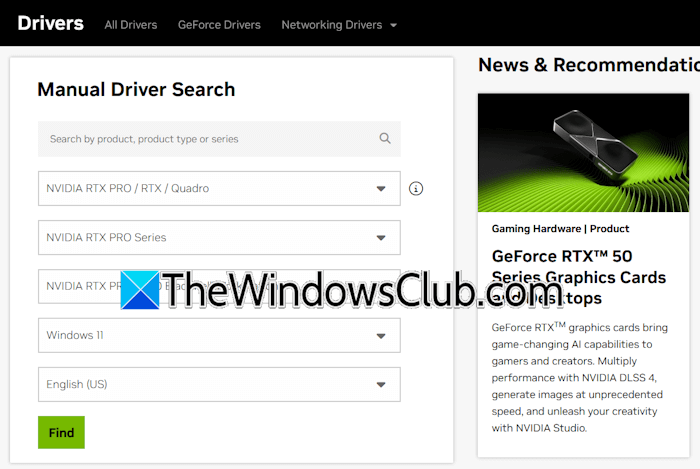
Use Manual driver search for this procedure. Do not choose Get Automatic Driver Updates, which updates the existing NVIDIA GPU driver instead.
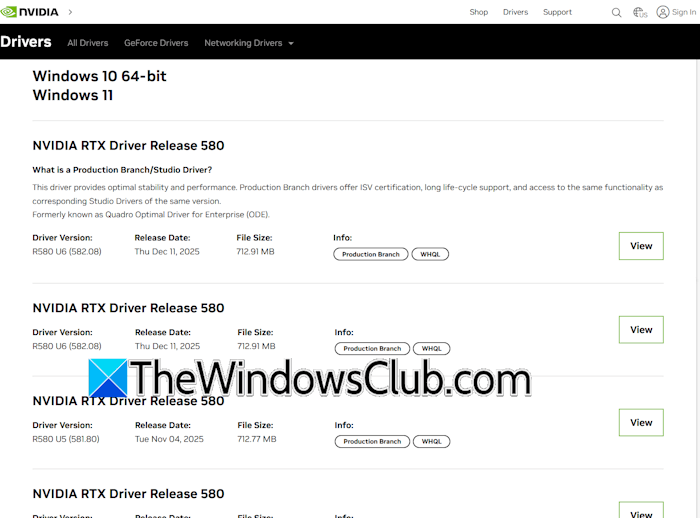
Click Find to display the latest and earlier driver versions. Choose the newest version, click View, then Download.
Clean-install with Display Driver Uninstaller
Display Driver Uninstaller (DDU) is a third-party utility that completely removes graphics drivers and their components. It supports AMD, NVIDIA, and Intel graphics cards.
- Download DDU from its official website. Extract the downloaded ZIP file to a location on your PC.
- Boot Windows in Safe Mode.
- Open the extracted folder and launch Display Driver Uninstaller. Leave its default settings unchanged.
- Choose GPU from “Select device type”, then NVIDIA from the next dropdown.
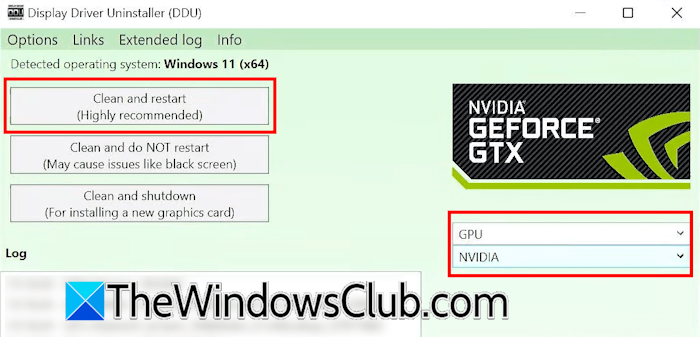
DDU offers three removal options:
- Clean and Restart (Highly recommended): Removes the GPU driver and its components, then automatically restarts the computer.
- Clean and do NOT restart (May cause issues like black screen): Removes the driver and its components without rebooting. This is intended for cases where you need to complete other tasks before restarting. You must restart manually and properly exit Safe Mode; restarting alone will not take you out of it.
- Clean and shutdown (For installing a new graphics card): Removes the current driver and its components before shutting down so you can install another graphics card. The existing driver and its components need to be removed before fitting the new card.
- Click “Clean and Restart (Highly recommended)”. Allow time for removal; display flickering during this process is normal.
- When removal finishes, the computer automatically restarts in normal mode.
- Run the driver installer downloaded from NVIDIA.
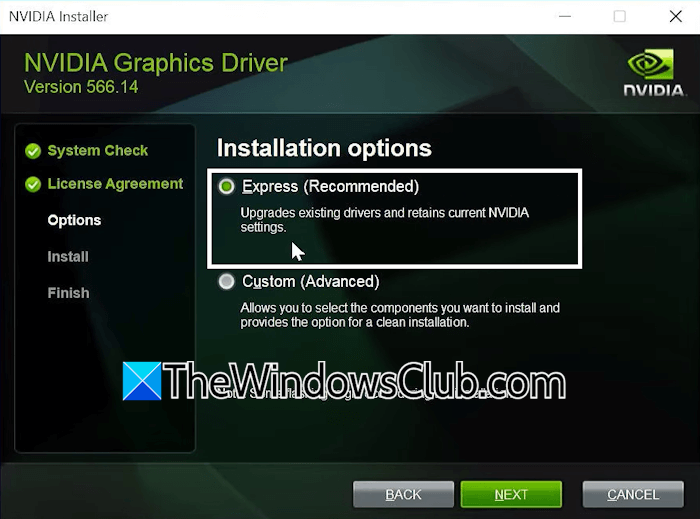
- Select Express (Recommended) and click NEXT. Once installation finishes, the latest NVIDIA graphics driver will be installed.
Clean-install using NVIDIA’s installer
If you prefer not to use DDU or another third-party tool, use the downloaded NVIDIA installer directly.
- Double-click the driver installer.
- On the first screen, choose whether to install only the graphics driver or include GeForce Experience, then click AGREE AND CONTINUE.
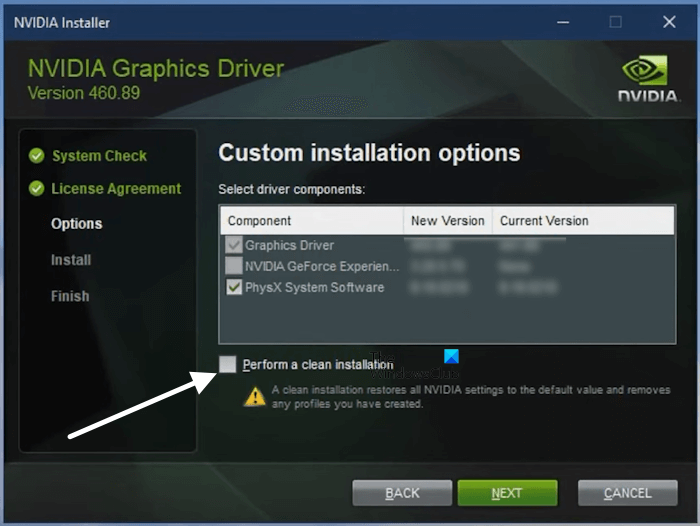
- The next screen offers Express install and Custom install. Select Custom and click NEXT.
- Check “Perform a clean installation” on the following screen, then click NEXT.
Flashes on the display during installation are normal.
NV Updater is another tool that can help update the NVIDIA Graphics Card Driver.