Damaged or missing game files can cause crashes, freezes, lag, stuttering, launch errors, or prevent a game from opening. On Windows, many game launchers provide verification and repair tools to address these problems.
What game files contain
Game files hold installation data, ROMs, maps, character designs, dialogue, settings, textures, and saved progress. The term also includes project files developers use to build games. Common extensions include:
- GAM: Stores save information recording a player's progress at a particular point.
- DXT: Holds compressed textures to reduce disk use; also known as S3CT (S3 Compressed Texture) and BC (Block Compression).
- MAP: Used by many games for map debugging and related purposes.
- ROM: Stores console-based games on a PC, primarily Nintendo 64 games.
- VDF: Valve Data files used by Valve's Source engine to store metadata, resources, scripts, and visualization elements.
Why files become corrupted
Possible causes include a PC crash during play, a power outage that shuts down the computer mid-game, malware or viruses, bad sectors on the drive containing the game, and contaminated content downloaded while playing. Other causes are also possible.
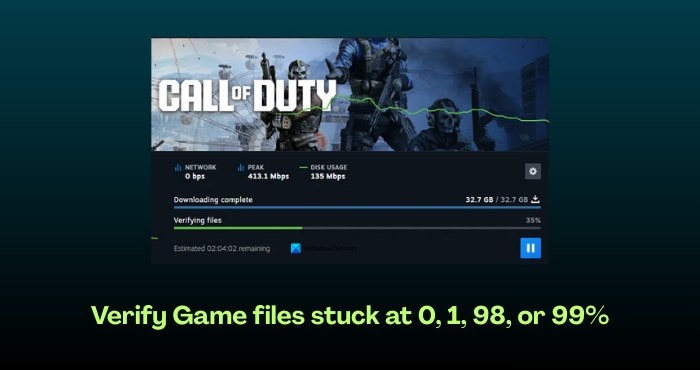
Verification compares local files with clean, updated copies on game servers. The launcher replaces modified or damaged files and restores missing ones. Completion time depends on file size: smaller files may take a couple of minutes, while larger ones can require several minutes.
Steam
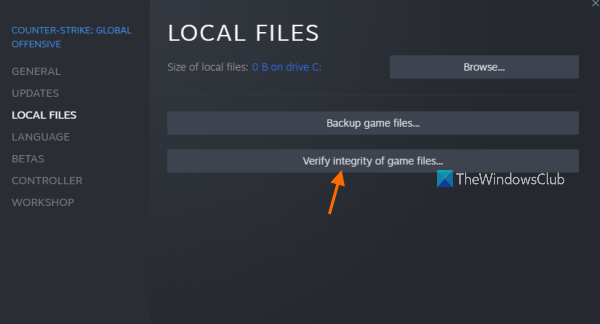
Steam lets Windows users purchase, download, organize, and manage thousands of games across different categories. Its repair tool is available in each game's properties.
- Open Steam and select LIBRARY.
- Find the affected game and right-click its title.
- Select Properties.
- Open the LOCAL FILES tab.
- Click VERIFY INTEGRITY OF GAME FILES.
- Allow verification and replacement of damaged files to finish without interruption. This may take a couple of minutes.
- Relaunch the game to check whether the problem is resolved.
Epic Games Launcher
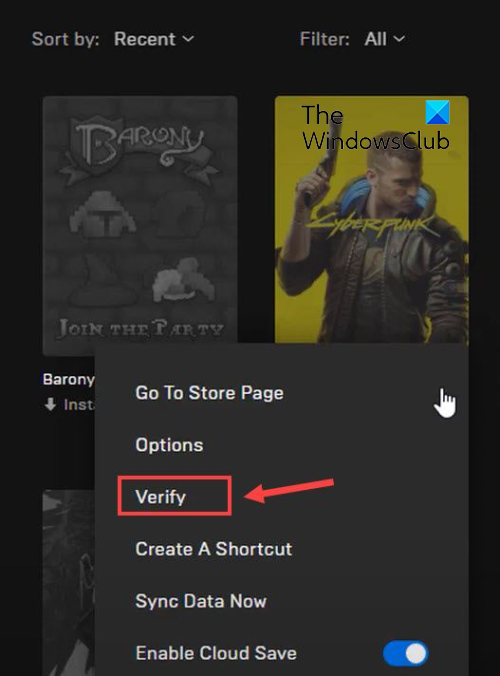
Epic Games Launcher supports Epic Games titles, including Fortnite, as well as Unreal Engine creations. Use its Verify feature to check installed files.
- Launch Epic Games Launcher.
- Select Library in the left pane.
- Locate the game you want to check.
- Click the three dots beside it.
- Choose Verify. The launcher will check the files and repair corrupted data.
- Wait for completion, then relaunch the game and check whether the earlier issues remain.
GOG Galaxy
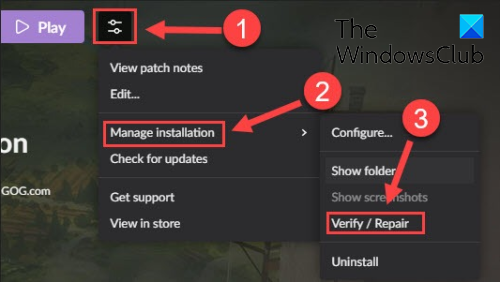
GOG Galaxy is a universal Windows launcher supporting cross-platform games, with features including Custom views, Cloud Storage, and Multiplayer & Matchmaking.
- Open GOG Galaxy and go to Library.
- Select the affected game.
- Click the Settings icon beside Play on the game's page.
- Choose Manage installation > Verify / Repair.
- Let GOG Galaxy verify and repair the files.
- When it finishes, relaunch the game to check its performance.
Rockstar Games Launcher
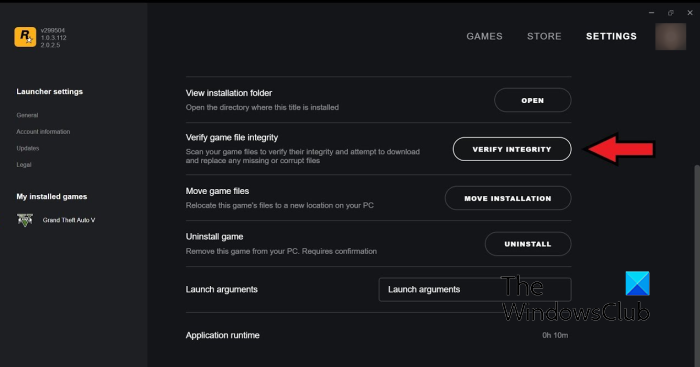
This launcher can check files for Rockstar Games titles such as Grand Theft Auto, Red Dead Redemption, and L.A. Noire.
- Open Rockstar Games Launcher.
- Select Settings on the home screen.
- In the left pane, find My installed games and select the affected title.
- Click Verify Integrity beside Verify game file integrity.
- Allow the launcher to check and repair the files.
- Launch the game again and see whether the issue persists.
Ubisoft Connect
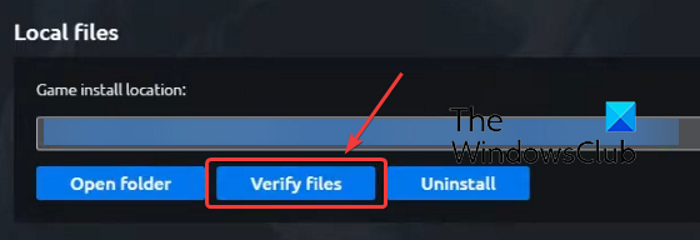
For Ubisoft titles such as Far Cry, Tom Clancy’s Rainbow Six Siege, and For Honor, use Ubisoft Connect's file verification tool.
- Open Ubisoft Connect and select Games.
- Select the affected game, then choose Properties in the left-hand panel.
- Under Local files, click Verify files.
- After verification, select Repair when prompted.
- Let Ubisoft Connect repair infected or broken files, then try playing again.
Origin
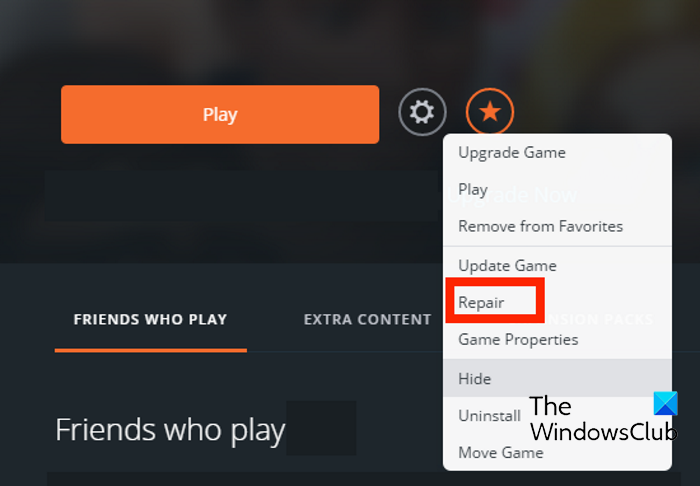
Origin's repair option can help with performance problems or launch errors in games such as Battlefield and The Sims.
- Launch Origin on your PC.
- Open My Game Library.
- Find the affected game and right-click it.
- Select Repair from the context menu, then wait while Origin checks and fixes the files.
- Once it finishes, check whether the game runs properly.
Battle.net
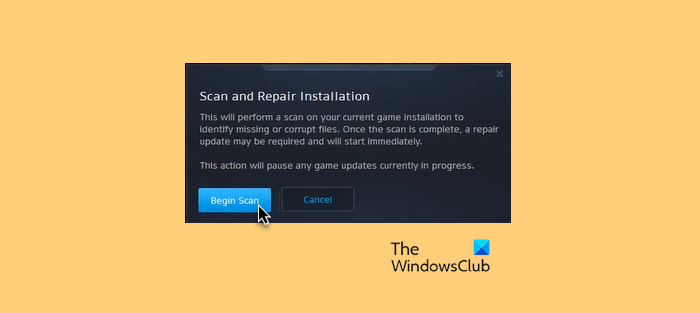
- Open the Battle.net client and select the game.
- Click the Gear icon and choose Scan and Repair.
- Select Begin Scan and wait for the process to finish.
- Close the Battle.net launcher and restart your PC.