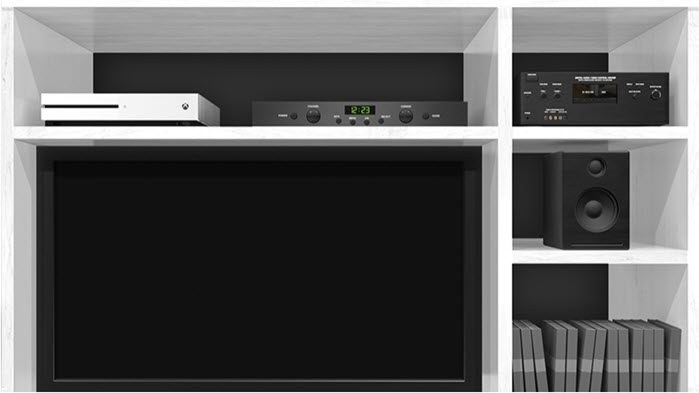
Crashes in the Xbox Public Multiplayer Lobby can occur when a new match begins immediately after the previous one ends. This problem is mainly associated with Tony Hawk’s Pro Skater 1 + 2.
For Xbox freezes or crashes, first quit the game, close the application, and launch it again. Restarting the console may also be necessary. If the problem persists, work through the following checks.
Check for Xbox updates
- Press the Home button in the center of the controller.
- Go to Profile & system and select Settings.
- Expand System and check for an available Console update. Install it if one is offered.
Inspect and clean the game disc
On Xbox consoles that support Blu-ray discs, inspect the disc for abrasions, scratches, and dust. Use a soft cotton cloth dampened with water to clean the non-label side, wiping straight from the center toward the edges. Let the disc dry completely before putting it back into the console.
Improve console ventilation
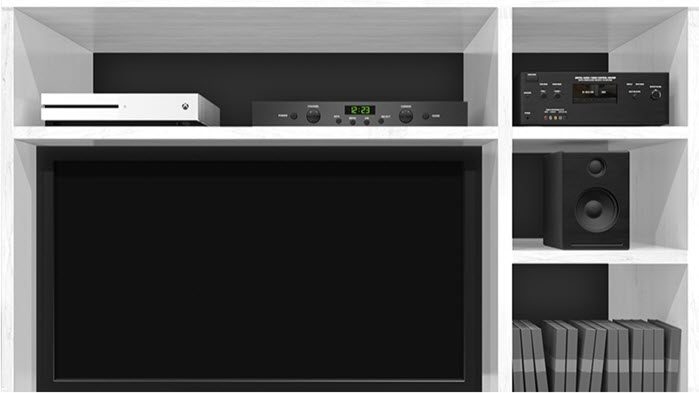
Overheating can contribute to repeated freezes or crashes. Keep the Xbox in a relatively cool, well-ventilated location, away from direct heat sources, with the surrounding space clear of clutter.
Clear the Xbox cache
The console stores temporary files and data to support gameplay. If this cached data becomes corrupted, it can cause connection problems, sluggish performance, failed game loads, or crashes.
- Press the Xbox button on the controller and open Settings.
- Select Devices and Connections > Blu-Ray.
- Choose Persistent Storage > Clear.
Clearing the cache removes all temporary data, so fresh copies will need to be downloaded.
Check crashes on a Windows PC
If the game crashes on Windows instead, take these steps:
- Confirm that your PC or laptop meets the minimum system requirements.
- Keep the computer in a cool, well-ventilated place.
- Close all applications running in the background.
- Update the graphics drivers, and obtain the latest video and sound drivers from the manufacturers' websites.
Dev error 6068
Dev error 6068 causes GPU hangs and crashes, most often during Campaign cutscenes. Try keeping VRAM below maximum and/or running the game with its default settings.
Switch to in-game chat
For chat problems, open Party menu > Party Options and switch to game chat. This should allow in-game conversation, but Party Chat will remain unavailable until you change the setting back.