Delayed keyboard responses can make games difficult to control. On Windows 11/10, possible causes range from loose connections and weak Bluetooth signals to depleted wireless keyboard batteries, outdated or corrupted drivers, resource-heavy background programs, VSync and outdated games.
Keyboards can have some input latency, depending on their connection and polling rate. Gaming keyboards are designed to minimize it; wired models have much lower latency than wireless ones, while higher polling rates reduce input delay.
Start with basic keyboard checks
First establish whether the delay occurs only in games or throughout Windows. If typing is slow in other apps too, run the Keyboard troubleshooter to see whether it identifies and fixes the problem.
- Disconnect and reconnect the keyboard. For a wired model, unplug it from the USB port and reconnect it. For a wireless model, remove it from Bluetooth devices and pair it again.
- For a USB keyboard, check that it is not discharged.
- Check the CPU temperature. If the PC is excessively hot, allow it to cool down.
- Remove accumulated dust from the keyboard keys and test again.
- Disconnect other attached devices and accessories to check whether they are contributing to the delay.
If these checks do not help, continue with the following methods in order.
Adjust keyboard settings
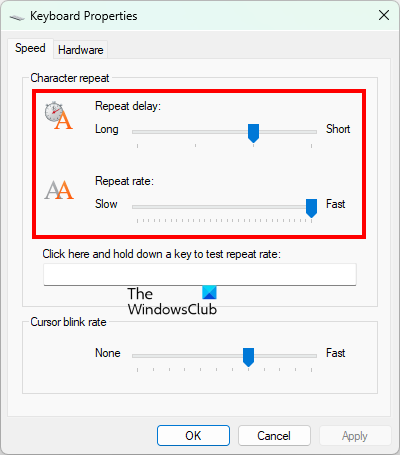
The default keyboard configuration may not suit your gaming setup. Try adjusting it:
- Open Windows Search and type Keyboard.
- Select the Keyboard Control Panel result.
- On the Speed tab, adjust Repeat delay and Repeat rate, keeping Repeat rate faster.
- Select OK to save the changes, then test the game.
Try a wired keyboard
An unstable Bluetooth connection can delay wireless keyboard input. Switching to a wired keyboard may reduce lag in PC games.
Close resource-heavy background apps
Games often place heavy demands on the CPU and GPU. Too many resource-consuming background apps can cause freezing and delayed keyboard responses.
Press Ctrl+Shift+Esc to open Task Manager, then use End task to close unnecessary background apps. Reopen the game and check whether the delay remains.
Turn off VSync
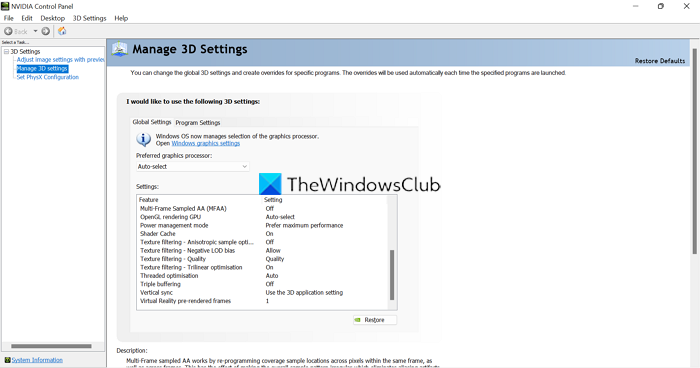
VSync synchronizes a game's FPS with the monitor's refresh rate for smoother playback, but disabling it is recommended when troubleshooting keyboard input lag.
Open the game's graphics or video settings and turn off VSync. If it is enabled through your GPU settings, disable it there as well.
Update the game
An outdated game version may be responsible. Use the game launcher to install the latest patches and update to the latest version.
Update or reinstall keyboard drivers
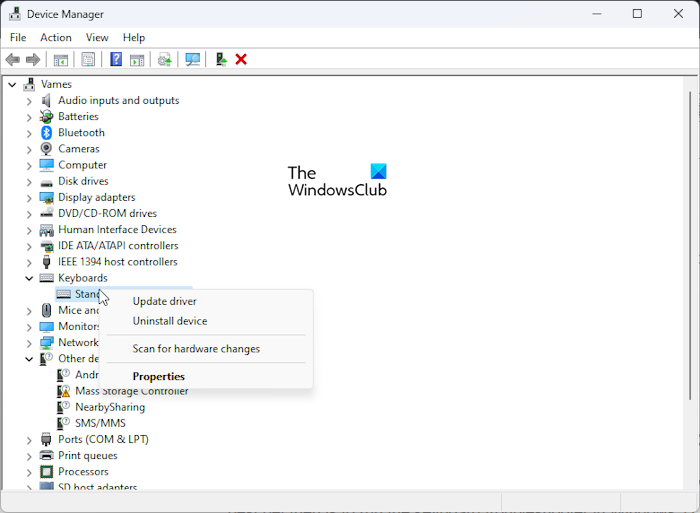
Outdated or corrupted keyboard drivers can cause input delays. To reinstall the driver:
- Press Win+X and select Device Manager.
- Expand Keyboards and right-click your keyboard.
- Select Uninstall driver from the context menu.
- Follow the prompts to finish uninstalling it.
- Restart the PC so Windows can reinstall the driver.
Test the game again to see whether keyboard input responds normally.