After a Windows update and restart, third-party tools and drivers—including AMD graphics drivers—may stop working correctly. A driver disabled after an update is usually a driver-related problem: Windows may have automatically installed a version that does not work with your AMD card, or the driver may conflict with the updated Windows version.
Simply uninstalling the driver may not solve it, because Windows can disable the replacement too. Try these troubleshooting methods in order.
Enable the graphics card
Manually enabling the card may not provide a lasting fix, but it is necessary for further troubleshooting.
- Open Run with Win + R, enter “devmgmt.msc”, and press Enter.
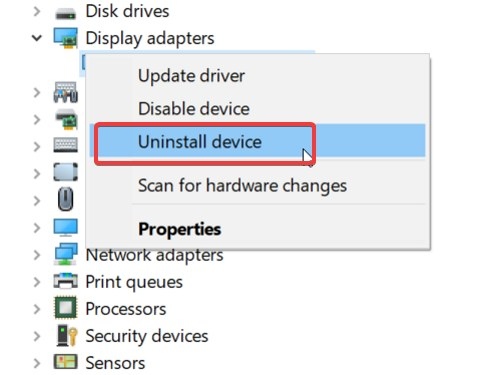
- In Device Manager, locate the AMD card under “Display adapters”.
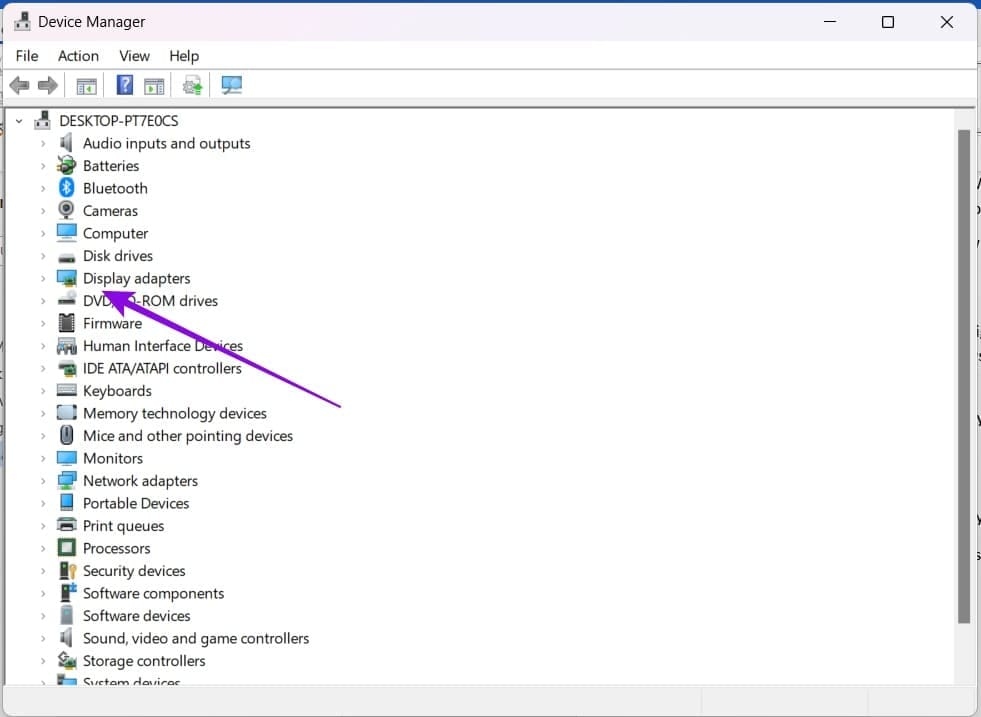
- Right-click the card and select “Enable”.
Turn off HAGS
Hardware-accelerated GPU scheduling sometimes contributes to graphics problems. Disable it to check whether it is responsible.
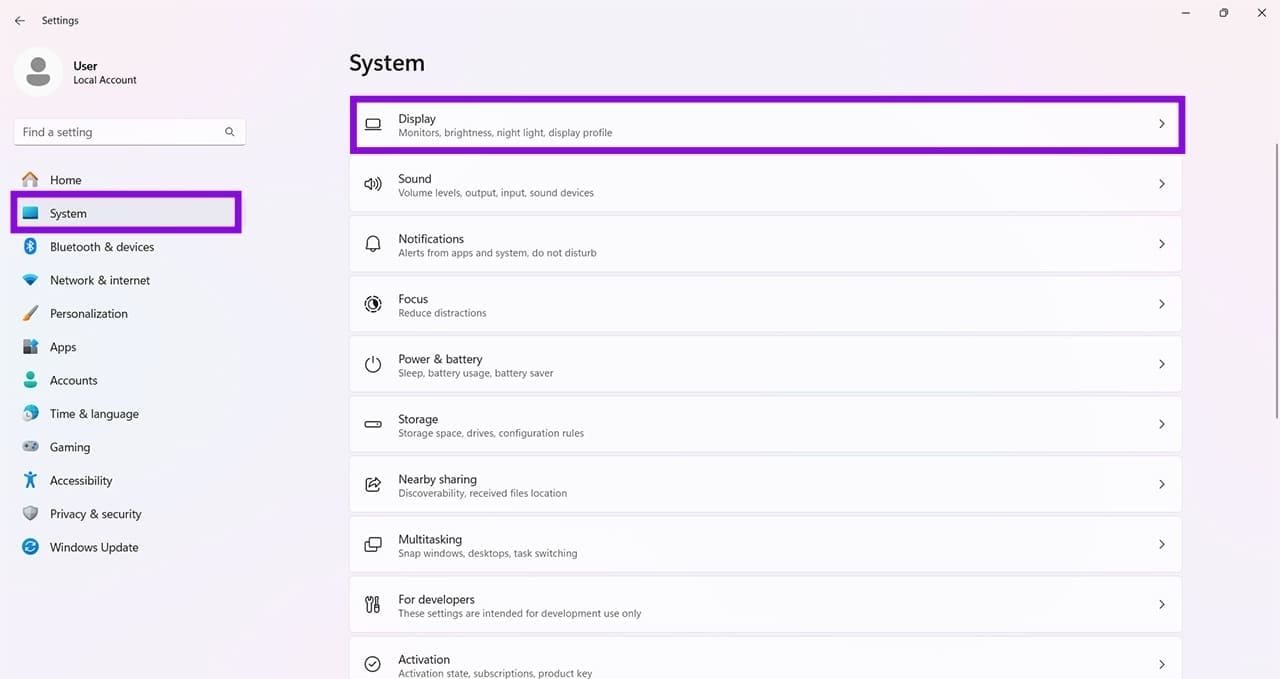
- Open “Settings” with Win + I and select “System” in the sidebar.
- Select “Display”.
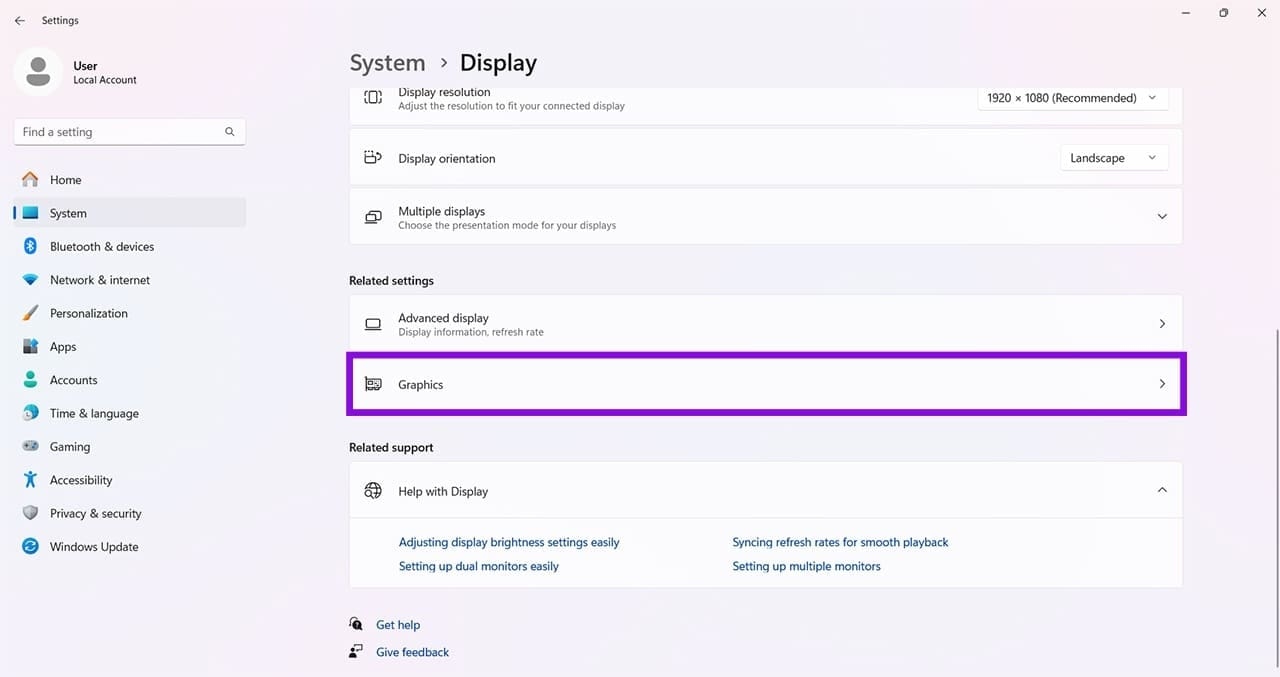
- Scroll down and open “Graphics”.
- Select “Change default graphics settings”.
- Set “Hardware-accelerated GPU scheduling” to “Off”.
- Restart the computer and check whether the issue is resolved.
Remove the driver manually
If the update installed an incompatible driver or corrupted the old one, uninstall it manually before installing a suitable replacement.
- Download the free Display Driver Uninstaller.
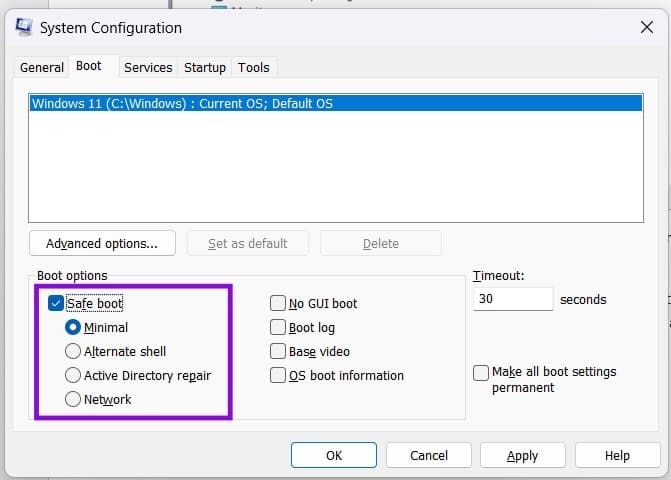
- Restart in “Safe Mode”: open Run, enter “msconfig”, select “Safe boot” on the “Boot” tab, and restart.
- After restarting, open DDU and select “GPU” from the dropdown.
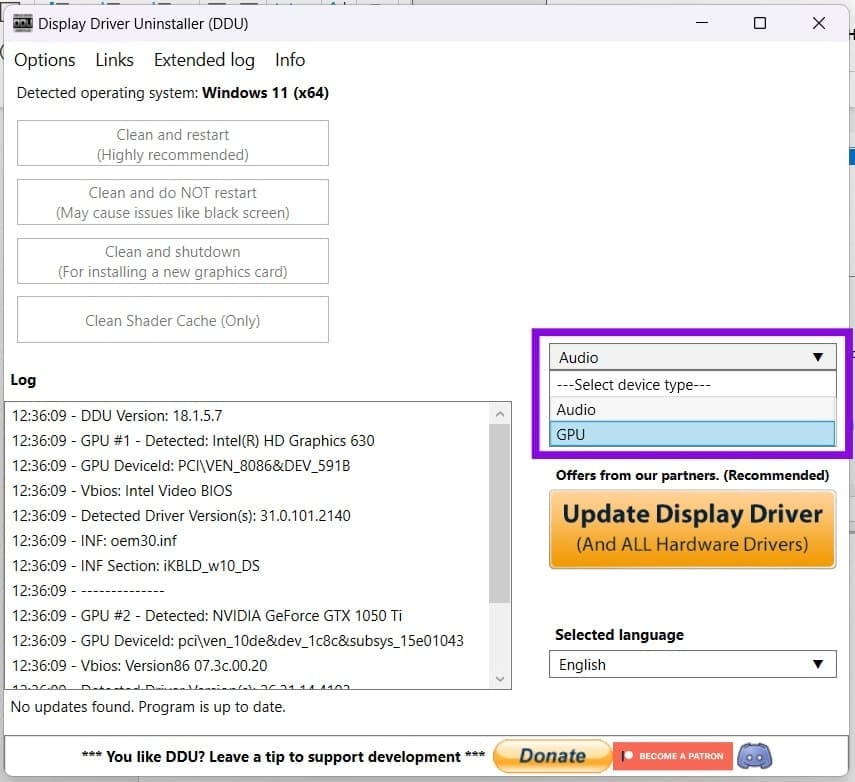
- Select “Clean and restart”.
- After the restart, visit AMD, manually download the latest driver or the last stable version that worked on your computer, and install it.
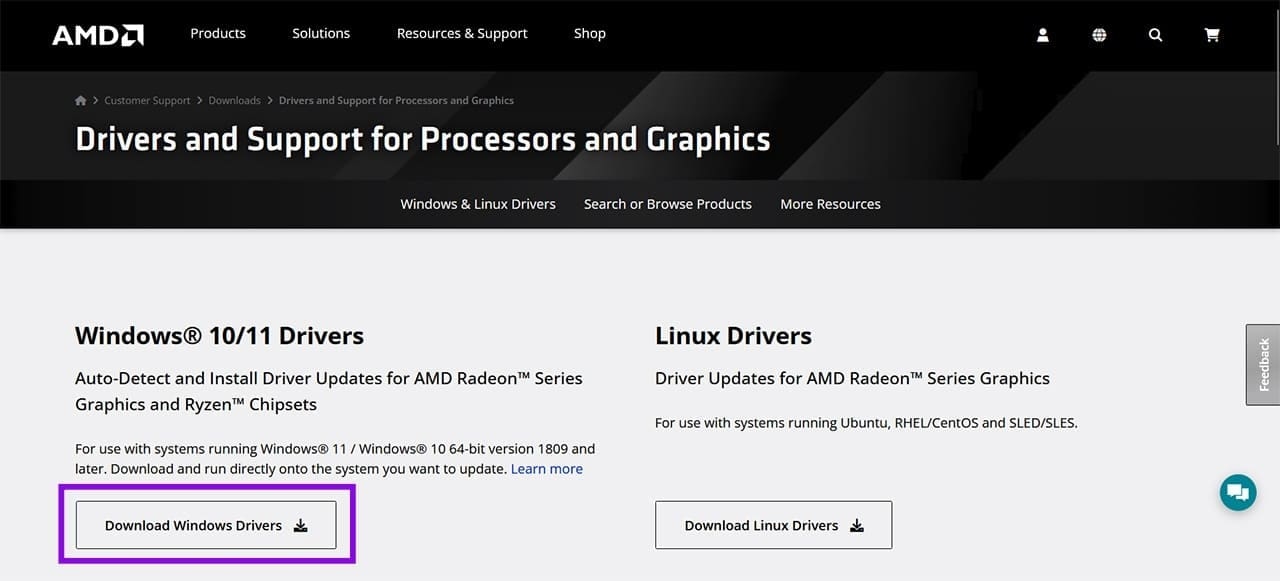
Stop automatic driver replacement
If Windows repeatedly replaces the graphics driver during updates, use the following procedure.
- Open Run with Win + R, enter “gpedit.msc”, and press Ctrl + Shift + Enter to run as Admin.
- In Group Policy Editor, go to “Computer Configuration”, then “Administrative Templates”.
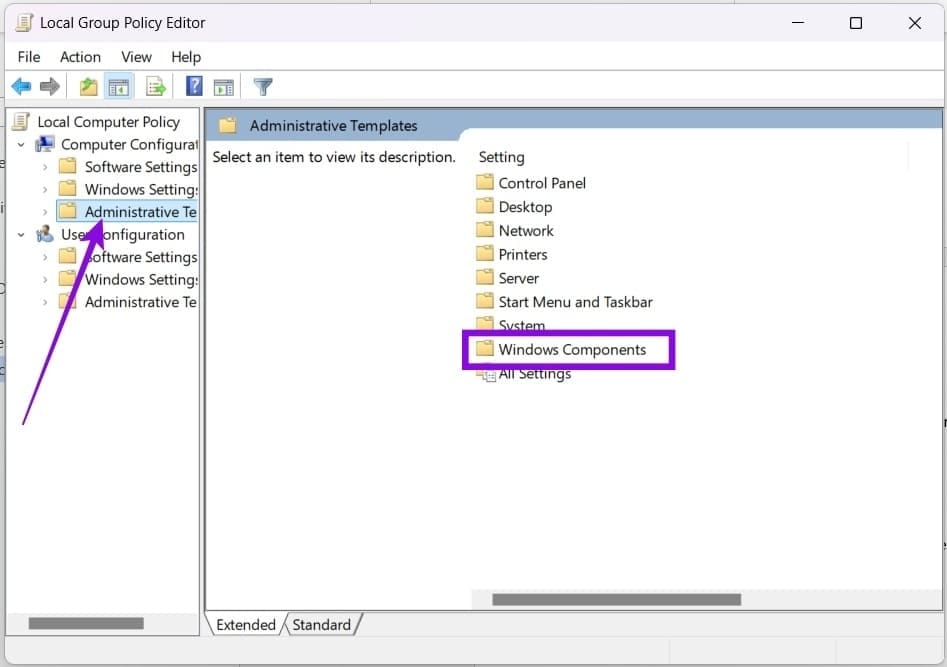
- Choose “Windows Components”, then “Windows Update”.
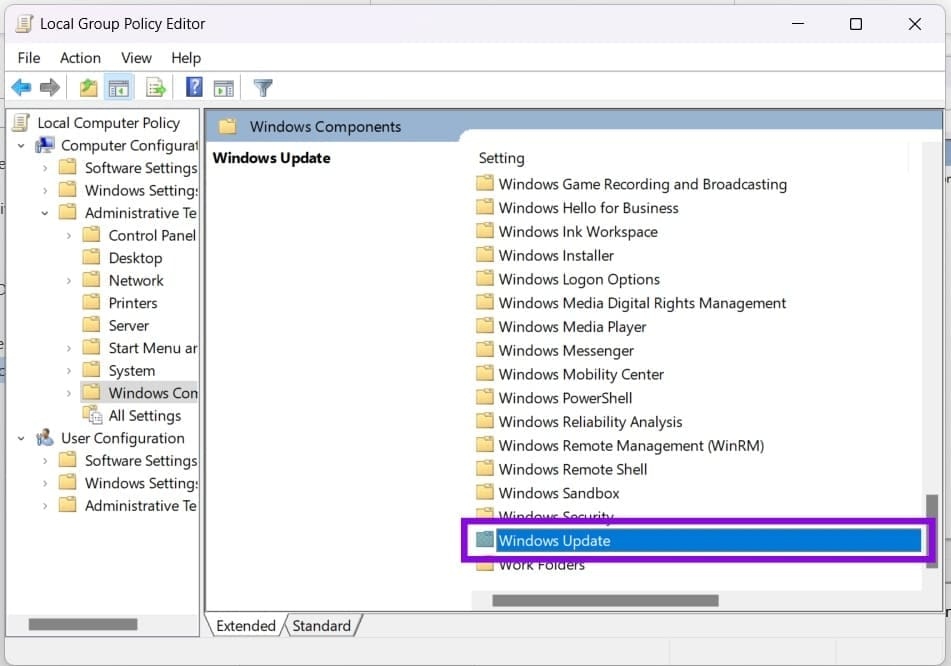
- Click “Manage updates offered from Windows Update”.
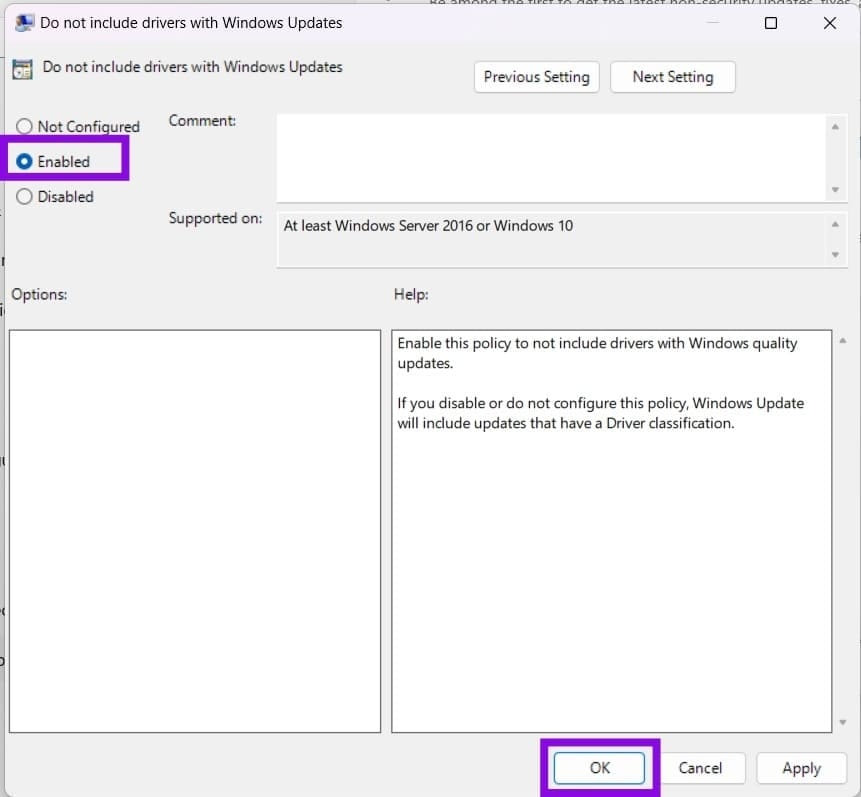
- Select “Enabled” and click “OK” to finish.