Fallout 4 is a post-apocalyptic role-playing game in the Fallout series. Players can manage its mods with tools such as NMM (Nexus Mod Manager) and Vortex Mod Manager. If mods stop working or fail to appear in the load order on Windows 11 or Windows 10, try the fixes below.
Possible causes include incorrect .ini settings, an outdated Nexus Mod Manager, missing administrator access, or mods stored outside the game’s installation location. Mods on a separate drive may require Multi-HD Install mode.
Check administrator permissions
Running Nexus Mod Manager as an administrator is one troubleshooting option. Some Fallout 4 mods also need administrative access, which may explain why NMM skips them. Users report this particularly with .esp files, which implement changes to the game world, such as adding characters or weapons.
Right-click the Fallout 4 icon and run the game as an administrator so it can load mods that require those permissions. If this resolves the problem, you can configure Fallout 4 to always run as an administrator.
Keep mods enabled through the .ini files
Enabling mods manually in the library may help, but some users report that they become disabled again the next time the game launches. To enable them permanently, configure the .ini files:
- Open the Documents folder and navigate to My Games > Fallout4.
- Look for Fallout4Custom.ini. If it is missing, open a blank document in Notepad and save it as Fallout4Custom.ini.
- Double-click the file to open it in your default text editor, typically Notepad. Paste the following lines, keeping each entry on its own line:
[Archive]
bInvalidateOlderFiles=1
sResourceDataDirsFinal=
Save the file, close Notepad, and check whether the mods work.
If the problem continues, find Fallout4Prefs.ini in the same folder. If it does not exist, create it with Notepad. Double-click the file to open it, then paste these lines:
[Launcher]:
bEnableFileSelection=1
If these entries are already present, check that bEnableFileSelection has a value of 1, and change it to 1 if necessary. Save the file and close Notepad.
Update Nexus Mod Manager
An outdated version of NMM may cause mods to malfunction. Update Nexus Mod Manager to the latest version, then check whether the issue is resolved.
Enable Multi-HD Install mode for mods on another drive
NMM supports storing mods on a different drive from the game. For example, you might install Fallout 4 on an SSD and keep mods on an HDD to save space. However, some mods may not work properly with this arrangement. Keeping all mods on the same drive as the game avoids this issue.
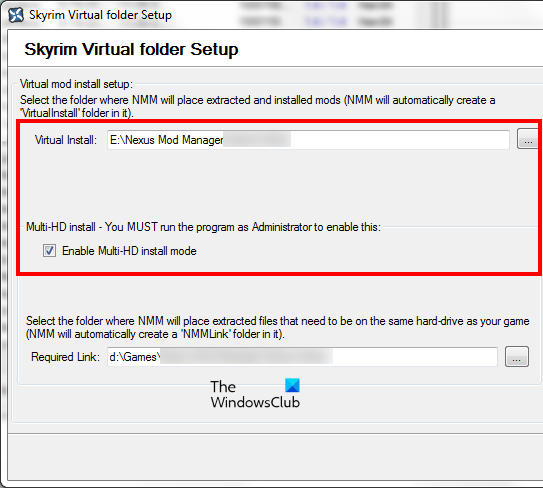
If your mods are installed on another drive, enable Multi-HD Install mode in NMM:
- Launch NMM as an administrator.
- Select the Enable Multi-HD Install mode checkbox.
- Click Browse next to Virtual Install.
- Choose the location containing your mods.
- Click Finish.
Check whether the mods now work.
Try another mod manager
If updating NMM does not restore your Fallout 4 mods or make them appear in the load order, consider Vortex Mod Manager or Mod Organizer 2 (MO2) as an alternative.
How the load order works
The load order determines the sequence in which mods load: those at the top load first, followed by those farther down the list.