A healthy FPS counter can hide uneven frame delivery. If background tasks are taking CPU time, Windows Game Mode may help; checking its setting takes about ten seconds.
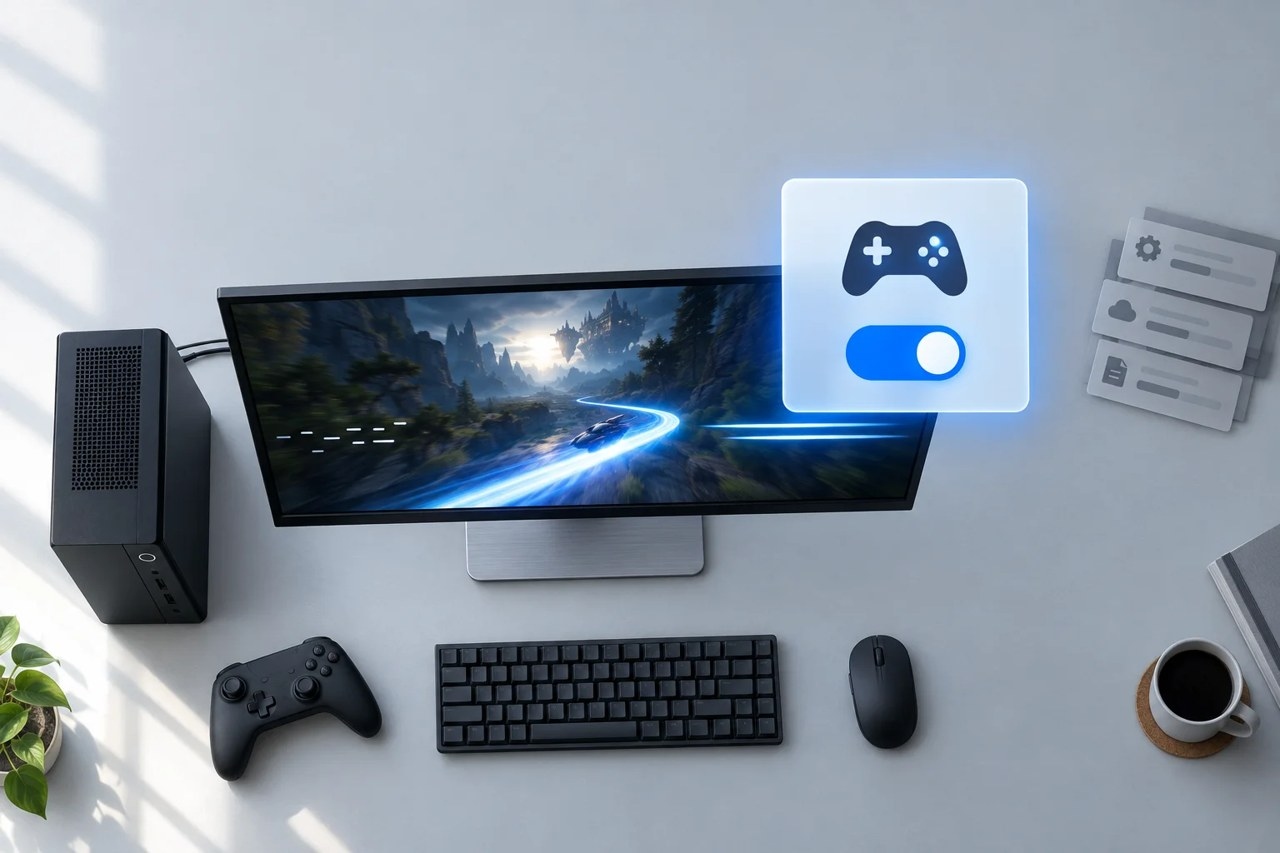
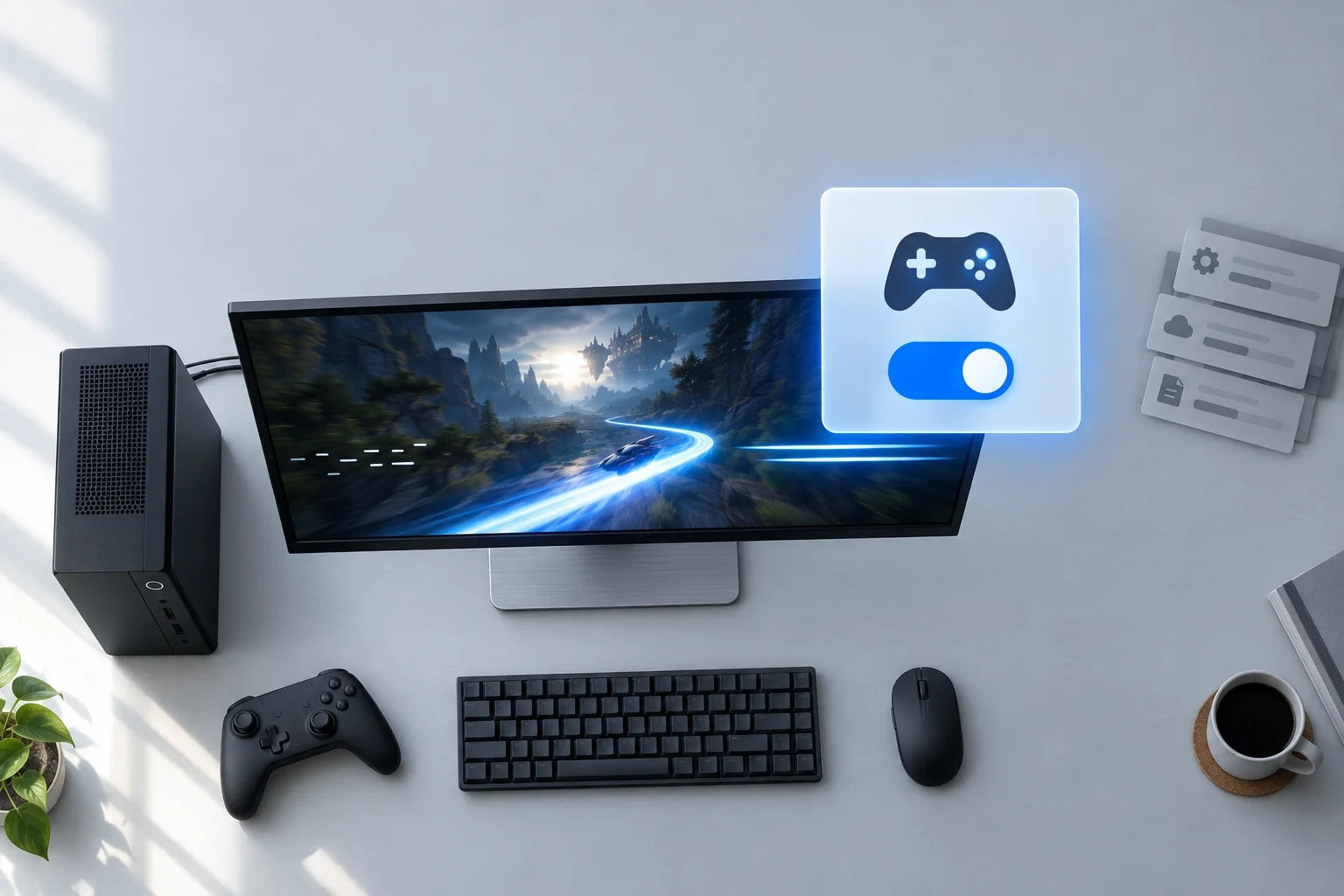
Game Mode prioritizes the running game and prevents Windows Update from installing drivers or displaying restart notifications during play. It does not suspend all background work, and its switch applies globally rather than to individual games.
Enable Game Mode
On Windows 11:
- Open Settings with
Windows + I
. - Choose Gaming in the left pane.
- Open Game Mode.
- Switch Game Mode to On.
No restart is required. Replay the section where you noticed stuttering.
Windows 10 reached the end of support on October 14, 2025; 22H2 is its final release. Game Mode remains available:
- Open Settings with
Windows + I
. - Choose Gaming.
- Open Game Mode from the left-hand pane.
- Switch Game Mode to On.
If your PC meets Windows 11 requirements, upgrading restores regular security updates and provides the newer gaming options discussed below. Windows 10 now receives security updates only through Extended Security Updates.
If Game Mode is hard to locate, search for “Game Mode” in Settings. Install pending Windows updates if Gaming is entirely absent. Organization policies may disable gaming features on work or school computers.
Compare frame-time consistency
Expect fewer hitches rather than a large average-FPS increase. Older-PC users may also find guidance on playing games smoothly on an old PC useful. Game Mode helps some systems, changes nothing on others and can slightly worsen certain game-and-driver combinations.
- Choose a repeatable benchmark or route through a busy area.
- Play for two minutes with Game Mode On, noting stutters.
- Return to Settings > Gaming > Game Mode and select Off.
- Repeat exactly the same scene.
Watch frame times if the game or GPU software displays them. Consistent delivery matters more than a higher average interrupted by spikes; retain whichever setting performs better.
Disable recording and test overlays
Xbox Game Bar and Game Mode are separate features. Game Bar's continuous background recording consumes performance.
- Go to Settings > Gaming > Captures.
- Disable background recording, usually labeled Record what happened; wording differs across Windows releases.
- Use
Windows + G
during play to check that Game Bar opens and closes properly, then keep it closed.
Disable Discord, Steam, NVIDIA, AMD and FPS-monitor overlays individually, testing after each change. An improvement after disabling one identifies the likely culprit.
Select the dedicated GPU
A laptop with integrated and dedicated graphics may run a game on the weaker chip. Game Mode cannot correct that selection.
- Go to Settings > System > Display > Graphics.
- Locate the game, or browse to its
.exe
file to add it. - Select the game and open its options.
- Choose High performance and save.
Restart the game and test with the laptop connected to its charger; many models throttle GPU performance on battery.
Update drivers and check game files
Game Mode cannot repair outdated or faulty graphics drivers.
- Get the latest stable GPU driver from AMD, NVIDIA or Intel, as appropriate.
- Install it, then restart the PC.
- Update both the game and launcher.
- Run the launcher's Verify or Repair option.
- Play for several minutes, allowing shader compilation to finish.
Shader-compilation stutter generally subsides after the first session in a new area. Persistent stuttering on a second pass through the same location points to another cause.
Test windowed-game optimizations and display settings
Windows 11 offers an option to improve frame presentation for DirectX 10 and DirectX 11 games in windowed and borderless-windowed modes.
- Open Settings > System > Display > Graphics.
- Locate Optimizations for windowed games, either on the Graphics page or under default graphics settings, depending on the Windows 11 release.
- Enable it.
- Compare borderless-windowed mode with exclusive fullscreen in the game.
Variable refresh rate, including FreeSync or G-SYNC, can smooth fluctuating frame rates, but requires a compatible monitor and suitable cable. Consult the monitor manual for the VRR-capable input and use a cable rated for that connection. Disable Auto HDR during troubleshooting: on an HDR monitor it changes appearance, not performance.
Try Hardware-accelerated GPU scheduling last
This option changes GPU memory and work-queue management. Results vary with the GPU, driver and game, so reserve it until the preceding six checks have failed.
- Open Settings > System > Display > Graphics.
- Select Change default graphics settings.
- Reverse the current Hardware-accelerated GPU scheduling setting.
- Restart the PC.
- Repeat the earlier comparison scene.
Undo the change if it does not help; keep the state that produces better frame times.
Check hardware limits
Monitor CPU and GPU temperatures during play. Thermal throttling can cause stutter regardless of Windows settings; removing dust or using a laptop cooling pad often helps more. Check that RAM and VRAM meet the game's needs at your chosen settings. Moving a game from an old hard drive to an SSD can reduce open-world loading hitches.
Game Mode is an easy, reversible first test, but modern PCs with little background activity may gain very little. Overlays, recording and drivers more often explain substantial stuttering. When high temperatures or crashes accompany it, investigate hardware before settings.