Some Ride 6/5/4 players report startup crashes, freezing or a black screen; others see stuttering before the game suddenly closes. First confirm that the PC meets the game’s system requirements and check for updates. Then try the fixes below in order.

Update the graphics driver
Windows updates generally update the graphics driver too. If yours remains outdated, try one of these alternatives:
- Download the driver from the manufacturer’s website.
- Install Driver and Optional Update.
- Update the GPU Driver through Device Manager.
Reopen the game after updating and check whether the problem remains.
Turn off Steam overlays
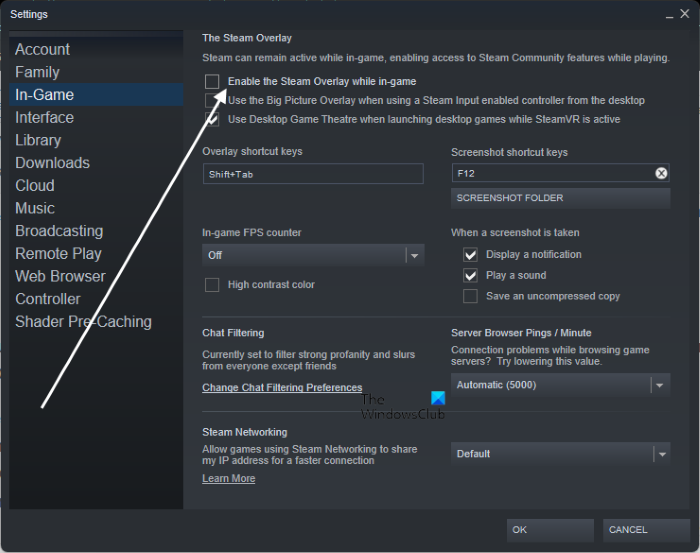
Steam overlays can interfere with the game. Disable them as follows:
- Open Steam and navigate to Steam > Settings.
- Choose In-Game and clear the checkbox beside Enable the Steam Overlay while in-game.
- Click OK to save.
Restart the game and test it. Disable overlays from other programs as well. If the problem continues, move to the next fix.
Check the game files
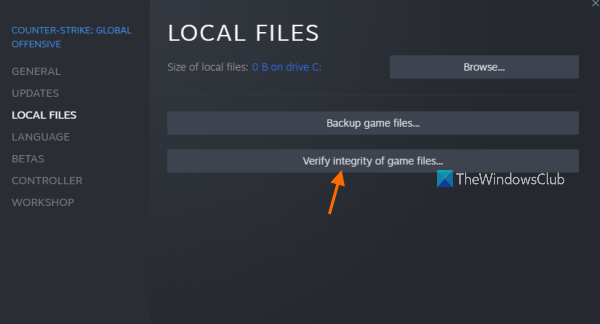
Missing or corrupted game files may be responsible. To check them in Steam:
- Launch Steam.
- Open Library and right-click Ride 4.
- Choose Properties, then open the Local Files tab.
- Select Verify Integrity of game files.
Allow the check to finish, then launch Ride 4 and test for problems.
Test in a Clean Boot environment
Before removing an overclocking application, establish whether it is actually responsible. Perform a Clean Boot without disabling the game’s services. If Ride runs without crashing, manually re-enable processes to identify the culprit. Remove the offending program, whether it is an overclocking tool or another application.
Change Discord settings
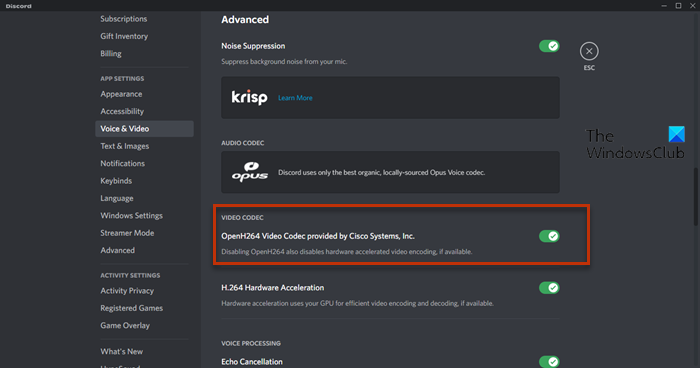
Some Discord settings can cause crashes. Try disabling them in this order:
- Open Discord and enter Users Settings.
- Select Voice and Video.
- Under Advanced, turn off OpenH264 Video Codec provided by the Cisco system and Enable Quality of Service High Packet Priority.
- Open the Advanced tab and turn off Hardware Acceleration.
Next, disable In-game overlays and restart the PC. If the issue persists, continue below.
Restore default CPU and graphics speeds
Although overclocking can improve gameplay, it can also introduce compatibility problems that cause crashes or freezes. Return CPU and graphics settings to their default speeds and disable any overclocking application.
Ride 6 recommended requirements
Make sure your PC meets the requirements for Ride 6:
- OS: Windows 11/10 64-bit or later
- Processor: Intel Core i7-10700 or AMD Ryzen 5 5600X
- Memory: 16 GB RAM
- Graphics: NVIDIA GeForce RTX 2080 or AMD Radeon RX 6600 XT
- VRAM: 8 GB
- DirectX: Version 11
- Storage: 50 GB available space.
Other reasons for freezing
Outdated graphics drivers and CPU or GPU overclocking can create compatibility issues. Even a PC that meets minimum requirements may start freezing during long sessions or while many background apps are running. Try restarting the system or closing unnecessary applications to free resources.