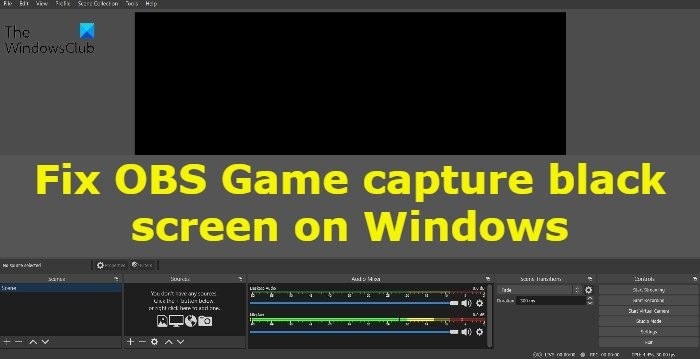
OBS Studio records games and streams them to platforms such as YouTube, but some Windows 11/10 users see only a black screen in their game preview. The following checks address common causes.
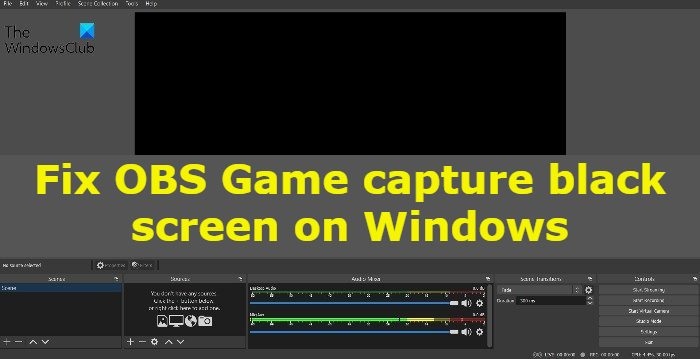
What can cause a black game preview?
The issue is particularly common on systems with a dedicated graphics card. Other possible causes include missing administrator permissions, an incorrect OBS Studio version, incompatibility with the installed Windows version, or interference from another game-capture application.
Install the matching OBS Studio version
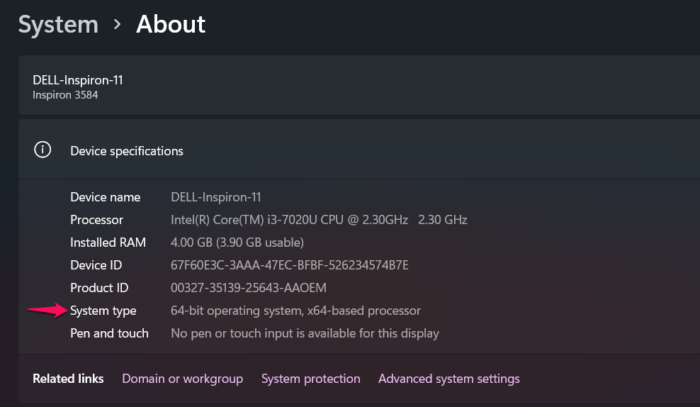
OBS Studio comes in 32-bit and 64-bit versions. Match the application to your Windows system type; for example, 64-bit Windows requires 64-bit OBS Studio.
- Right-click This PC and select Properties.
- Under Device specification, check System type for the installed Windows version.
- Download the corresponding OBS Studio version.
Change compatibility mode
Some users report compatibility problems with the latest Windows version and say that choosing Windows 7 compatibility resolves them. To try this:
- Open the Start Menu and type OBS Studio.
- Right-click the result and select Open file location.
- Right-click the OBS Studio exe file and select Properties.
- Open the Compatibility tab.
- Open the drop-down under Compatibility mode.
- Select Windows 7.
- Click Apply > OK.
Check whether the preview now works.
Close competing capture applications
Other recording or streaming applications running in the background can interfere with OBS Studio.
- Press Ctrl + Shift + Esc to open Task Manager.
- Right-click each similar application running in the background.
- Select End Task.
Launch OBS Studio, record a game and check its preview. If the black screen remains, continue below.
Run OBS Studio as an administrator
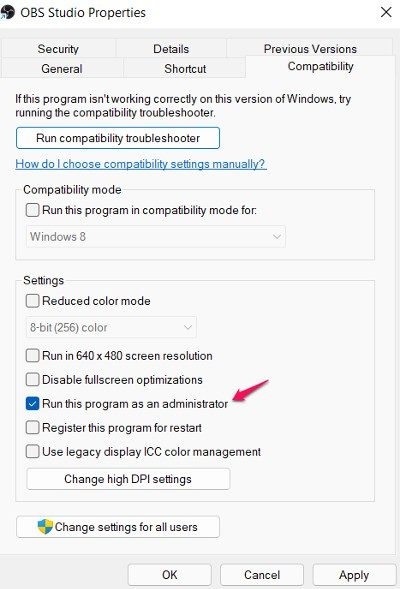
Insufficient permissions may prevent OBS Studio from working correctly. Test administrator mode; if it helps, keep this setting enabled:
- Right-click the OBS Studio icon and select Properties.
- Open the Compatibility tab.
- Select Run this program as an administrator.
- Click Apply > OK.
Change the GPU used by OBS Studio
Try running OBS Studio with the high-performance NVIDIA processor:
- Open NVIDIA Control Panel.
- Click View, then Add the “Run with graphics processor” option to the context menu.
- Right-click OBS Studio and select Run with graphics processor.
- Select High-performance NVIDIA processor.
Restart the computer, launch OBS Studio and test game capture again.
Reinstall OBS Studio
If none of these fixes helps, reinstall OBS Studio. Problems with its application files may be causing the black screen.
What if OBS Studio does not capture the game at all?
Try the latest graphics driver update, administrator mode, a different compatibility mode, a Clean Boot and an SFC scan. If the problem persists, reinstall OBS Studio.
Game Capture versus Display capture
Game Capture records only the game. With a windowed game, it captures that window rather than other windows behind it. Display capture records everything visible on the monitor. Choose the option that matches what you want to record.