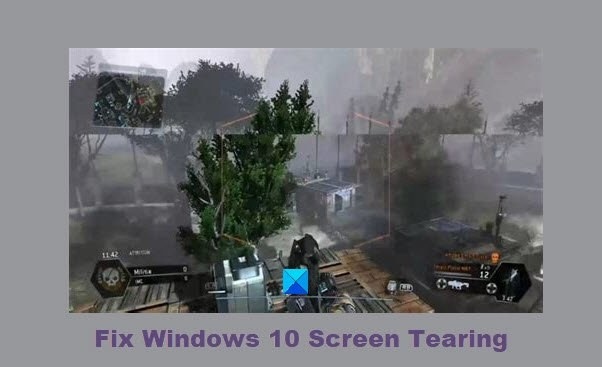
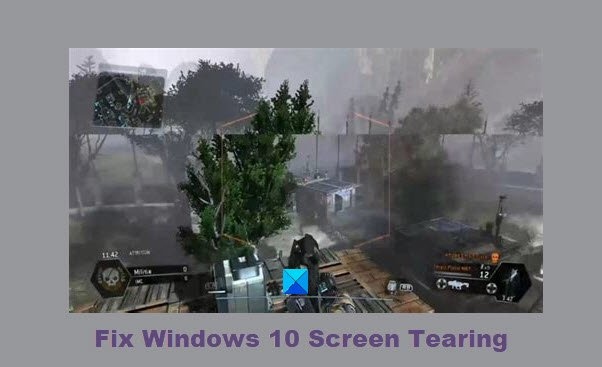
Screen tearing in Windows 11/10 can affect more than games: it may appear while scrolling, watching videos, or starting the computer. Symptoms include choppy navigation, a falling frame rate, and a visible line across the screen or through vertical objects near its center. Software or the GPU is often involved.
Try the following checks in order.
Check the screen resolution
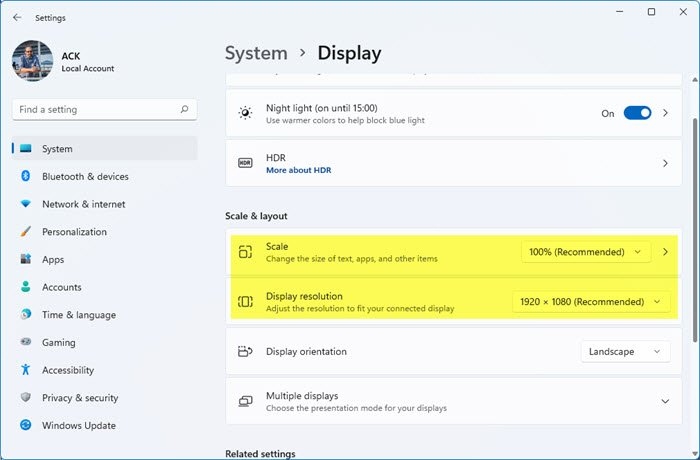
The image above shows Windows 11. An unsuitable resolution can cause tearing.
- Open Settings with Windows key + I.
- Go to System > Display.
- Scroll to Display resolution and choose Recommended from the dropdown menu.
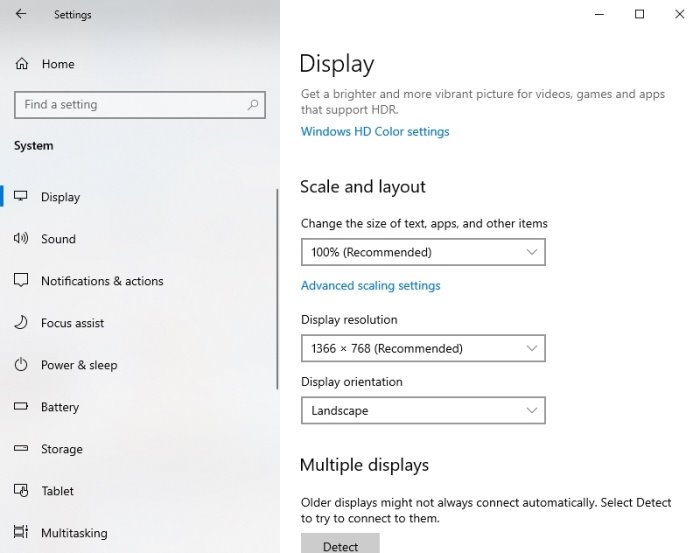
The image above shows Windows 10.
Adjust the refresh rate
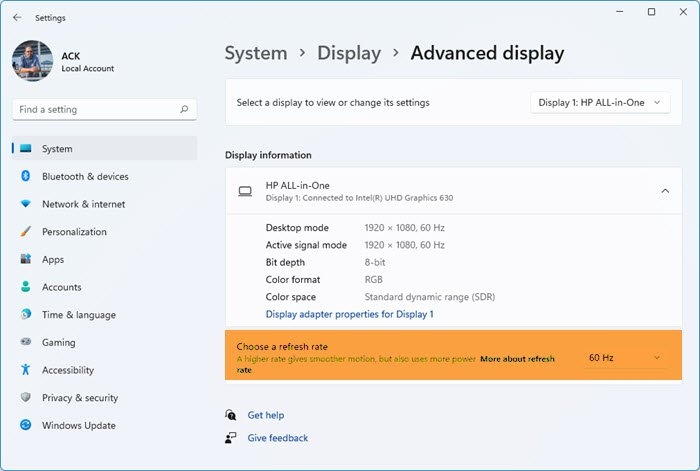
The Windows 11 screen above shows the display settings. A refresh rate set too high or too low may contribute to the problem.
- In Settings, open System > Display.
- Go to Advanced Display Settings.
- Find Refresh Rate and select the option best suited to your monitor.
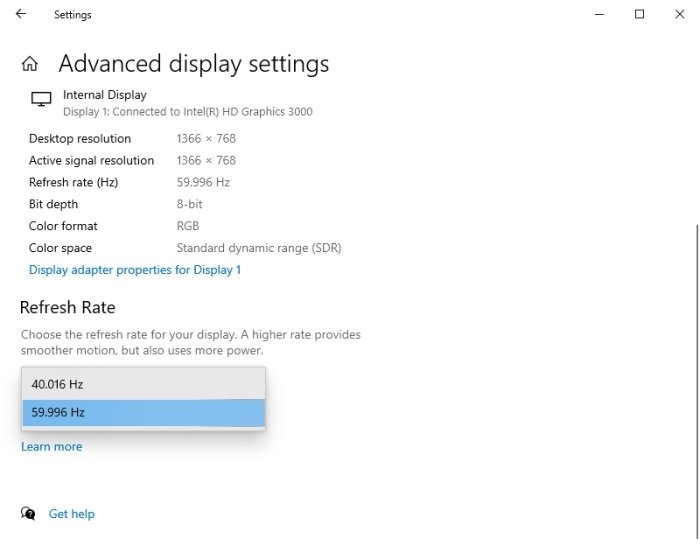
Restart the computer to finish.
Update or reinstall the graphics driver
Update your graphics drivers and check whether tearing improves. NVIDIA graphics card users can use NV Updater to update NVIDIA Graphic Card Drivers. Alternatively, download the driver and install it again.
Run the video playback troubleshooter
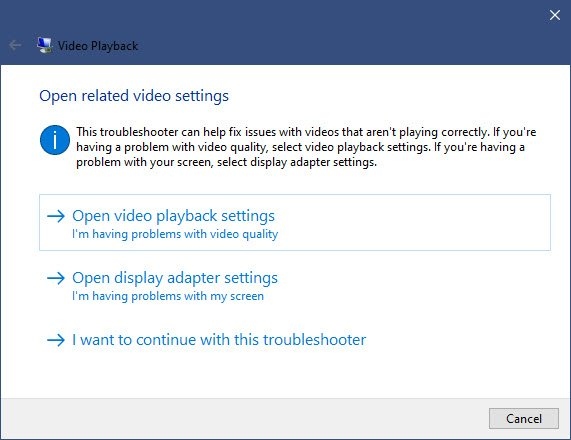
Run Video Playback Troubleshooter from Windows Settings > Update and security > Troubleshoot > Additional Troubleshooters, then check whether it resolves the issue.
Have the hardware checked
If none of these steps helps, ask a hardware technician to inspect the monitor for a hardware fault.