High Dynamic Range (HDR) increases display brightness and color to improve images and video. A correctly calibrated HDR display reduces the need to keep adjusting brightness and contrast as a game moves between dark and bright scenes.
Hardware requirements for HDR gaming
You need an HDR-capable display, an HDR-capable GPU, and a suitable DisplayPort or HDMI cable.
Display
Choose a monitor that supports HDR and provides at least 400 or 600 nits of brightness. Both brightness levels are suitable for HDR gaming, though a display offering at least 1000 nits is preferable if your budget allows. Brightness is measured in nits: 1 nit equals 1 candela per square meter (1cd/m^2).
Graphics card
The GPU must be able to produce HDR images; a compatible monitor alone is not enough. Research graphics cards online to find models with HDR support.
Connection cable
HDR requires sufficient bandwidth between the computer and monitor. Use a cable supporting DisplayPort 1.4 or higher, or HDMI 2.0 or later. DisplayPort 1.2 does not support HDR content.
Enable HDR in Windows
Turn on HDR before calibrating the display. Also enable the HDR mode on the display itself.
Windows 11
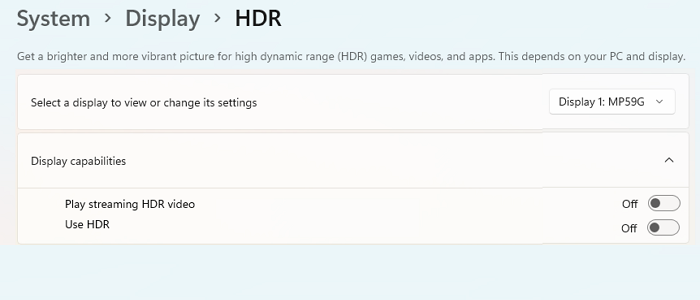
- Press Win + I to open Settings.
- Open System > Display.
- If several displays are connected, select the HDR-capable one.
- Enable Use HDR and Play streaming HDR video.
Windows 10
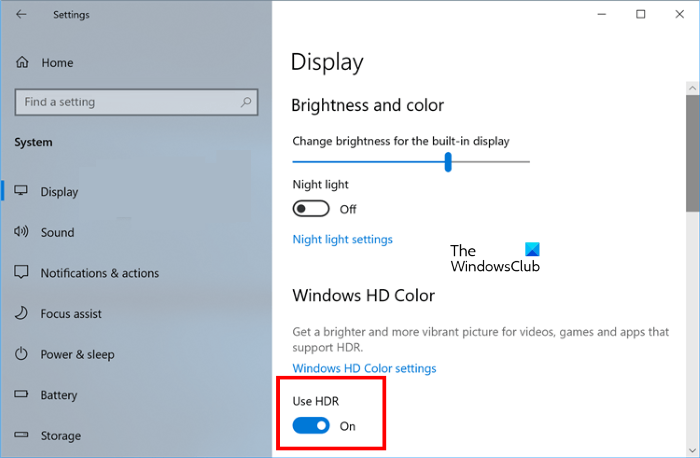
- Right-click Start and choose Settings.
- Go to Settings > System > Display.
- Under Rearrange your displays, choose the HDR-capable display.
- Enable Use HDR and Stream HDR Video.
Auto HDR
Windows 11 and Windows 10 also offer Auto HDR. This advanced HDR feature is not supported by every game or gaming console. In supported games, enabling it provides a richer, more defined resolution than originally designed. You can enable Auto HDR in addition to HDR.
Calibrate the display for HDR
Calibration is essential to HDR image quality. Incorrect calibration can prevent images and videos from looking their best.
Windows 11 calibration
- Open the Windows 11 Settings app.
- Go to System > Display.
- Choose your HDR-capable display, then select HDR.
- Select Display calibration for HDR video.
- Use the video's full-screen icon to expand it.
- Adjust the slider left or right to calibrate the display.
- Exit full-screen mode when finished. Windows applies the changes automatically.
- To undo the calibration, select Reset calibration on the HDR video calibration screen.
Windows 10 calibration
- Open the Windows 10 Settings app.
- Go to Apps > Video playback > Windows HD color settings.
- Under Choose display, select the HDR-capable display.
- Select Change calibration settings.
- On the HDR Calibration Screen, hover over the sample video and select its full-screen icon.
- Move the slider left or right, balancing detail in the scene's dark and bright areas.
- Exit full-screen mode. Windows automatically applies the changes.
- If the result is unsatisfactory, select Reset calibration on the HDR video calibration screen, then calibrate again.
Troubleshoot common HDR problems
Before investigating individual symptoms, check that the HDMI or DP cable works properly. Also open Device Manager and update the graphics card driver.
The display does not show HDR
HDR may be disabled on the HDR-capable display, or the computer's hardware may not support HDR technology.
The Use HDR switch is unavailable
A greyed-out Use HDR switch commonly affects HDR-capable laptops. Allowing HDR content on battery can resolve it. First connect the laptop to power, then open Windows Settings.
- In Windows 11, open System > Display > Use HDR. Select Battery options, then enable both Allow HDR games, videos, and apps on battery. and Allow streaming HDR video on battery.
- In Windows 10, open System > Display > Windows HD color settings. Under Battery options, clear Don’t allow HDR games and apps on battery.
Incorrect colors on a laptop's built-in HDR display
Default power settings can turn HDR off while a laptop runs on battery, causing color problems. Use the battery options above to permit HDR playback without external power.
Oversaturated colors with night light enabled
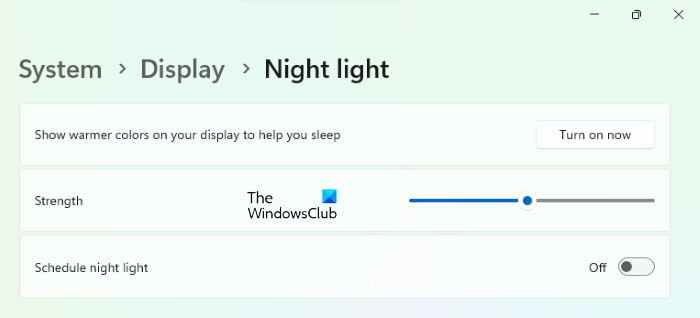
Enabling HDR while night light is on may produce a red tint. Reduce night light's strength by moving its slider left, or turn night light off.
What HDR adds to games
With compatible PC hardware and an HDR-capable external monitor or built-in laptop display, HDR can provide a wider color gamut, deeper saturation, brighter and more detailed highlights and shadows, and more varied contrast. Enable HDR in Windows and on the display, then calibrate it to take advantage of those improvements.