Game Mode, located under Gaming in Windows 11/10 Settings, prioritizes system resources for games to reduce lag and frame-rate problems. Microsoft says it can make almost any game run more smoothly.
When enabled, it directs most CPU and GPU power toward the game and automatically stops unwanted or lower-priority background activity, such as random antivirus scans. You cannot choose which individual background processes stop or run while Game Mode is active.
Enable or disable Game Mode in Windows 11
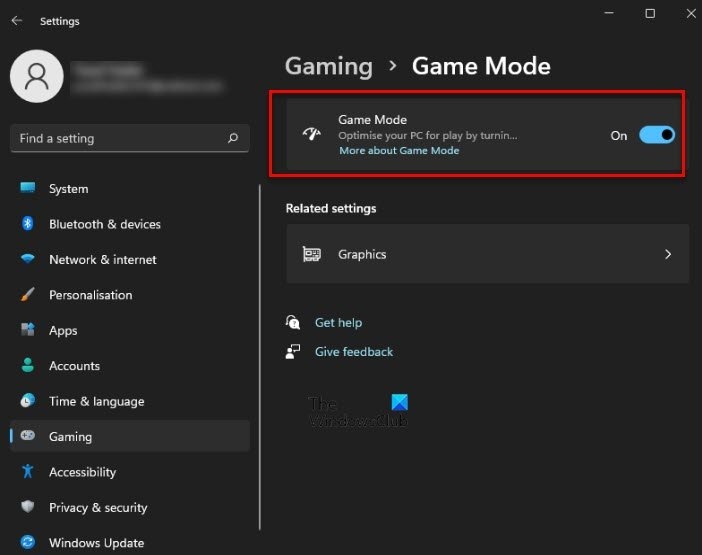
Your OEM may enable Game Mode by default. To check or change its status:
- Open Settings with Win + I or through the Start Menu.
- Select Gaming.
- Open Game Mode.
- Use the toggle to turn Game Mode on or off.
Select More about Game mode in the same section for additional information. Once enabled, launch the game you want to play.
Enable Game Mode in Windows 10
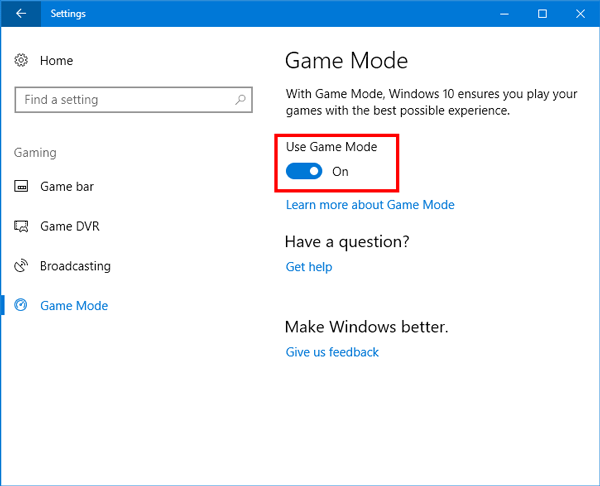
- Open the Settings Panel and select Gaming.
- Choose Game Mode on the left.
- Turn on the Game Mode toggle.
Activate it for an individual game
After enabling Game Mode in Settings, activate it for the game itself:
- Open the Game Bar section in the same Gaming settings area.
- Enable Record game clips, screenshots, and broadcast using Game Bar.
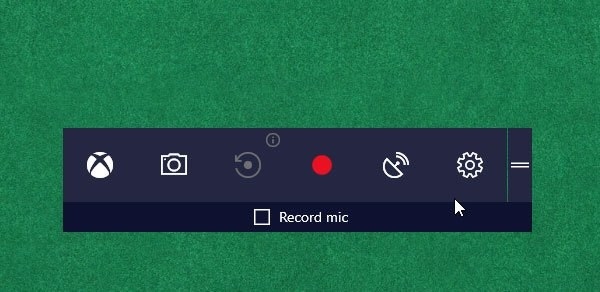
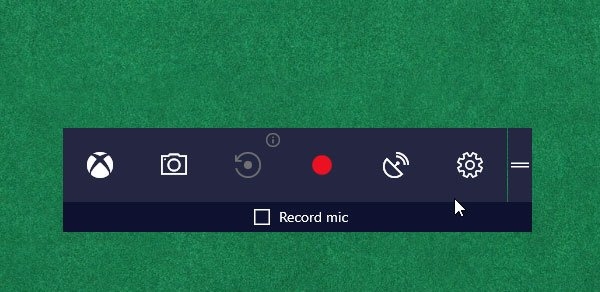
- Launch a game and press Win + G to open Game bar.
- Select the settings gear icon.
- On the General tab, select Use Game Mode for this game.
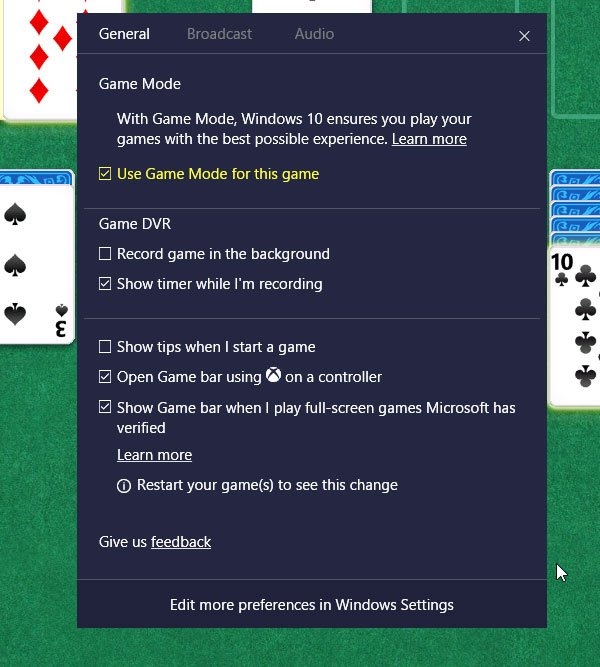
Game Mode is now active for that game. To disable it, return to the same screen and clear the checkbox.
When disabling Game Mode may help
The performance improvement depends on your hardware, and you may not notice a speed increase. In most cases, however, Game Mode does not cause problems that require turning it off.
Some users have reported system or application crashes and other unusual behavior with Game Mode enabled. Its reallocation of resources toward games can interfere with important background tasks and cause system issues. If you encounter these problems while gaming, disable Game Mode and try again.