Keeping GPU drivers current is generally recommended for better system performance, but updates can occasionally cause game crashes, freezing, or broader Windows 11/10 problems. If trouble began after a graphics driver update, follow the recovery steps below in order.
Confirm or create a restore point
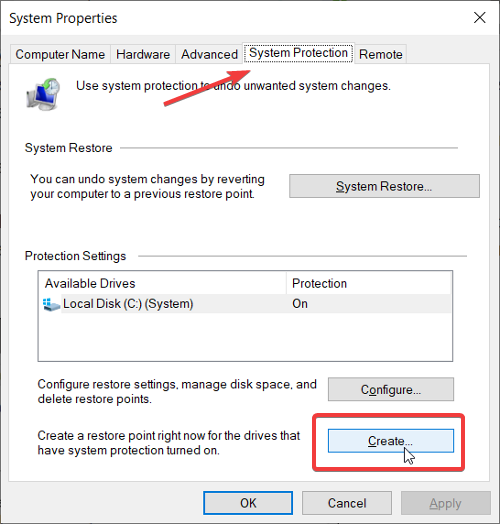
System Restore uses saved restore points to return a computer to an earlier stable state. Older Windows editions required manual creation; Windows now saves points automatically when software is updated. However, the latest automatic point may be too old, so confirm that one exists or create one before troubleshooting.
- Press the Windows key, search for create a restore point, and open the matching result.
- On the System Protection tab, select Create at the bottom.
- Enter a relevant name and description, then click Create.
Roll back the graphics driver
Returning to the previous driver version may resolve problems introduced by the update.
- Open Device Manager and locate your GPU driver.
- Right-click it and select Properties.
- Click Roll Back driver.
- Select a reason on the next screen, then click OK to begin.
Let Windows finish. The display may flicker or briefly turn off during rollback; this is normal. If rollback does not help, uninstall the driver and freshly install the latest version.
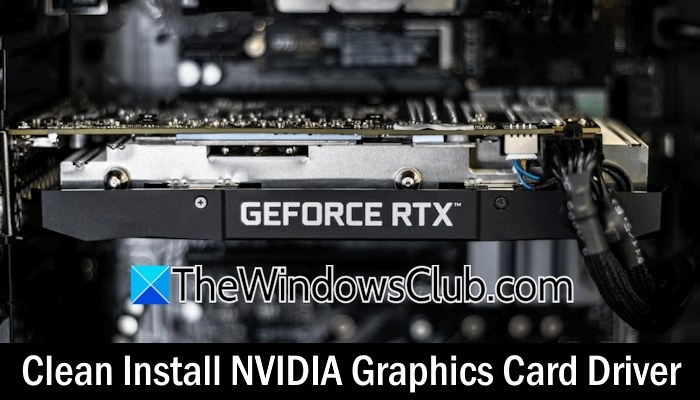
Remove and clean-install the driver
A faulty installation may explain problems after an update. Remove the existing driver, then either let Windows reinstall it or obtain a fresh copy from the manufacturer's official website.
- Right-click Start and choose Run.
- Enter devmgmt.msc and click Ok.
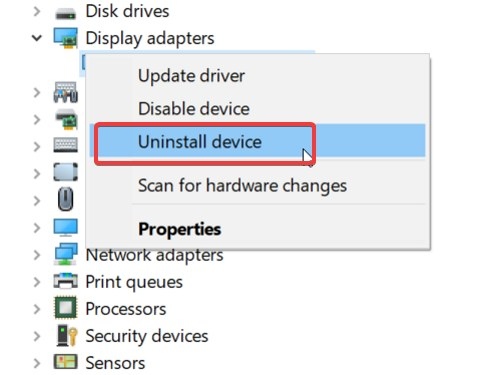
- Expand Display adapters in Device Manager.
- Right-click the GPU driver and choose Uninstall driver.
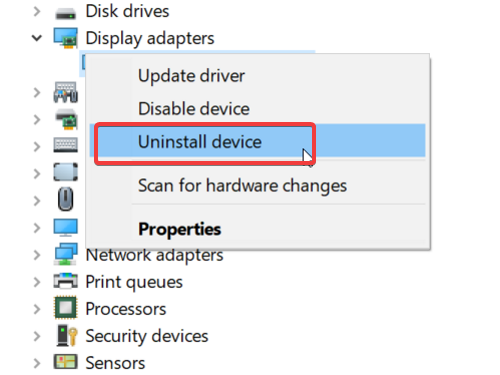
In the confirmation prompt, select Delete the driver software for this device and click Uninstall. Alternatively, use the AMD, INTEL, NVIDIA Driver removal tool.
Restart the computer to apply the changes. Windows will automatically install drivers during startup. Alternatively, download the latest graphics driver from the official website and run its installer.
A clean installation removes the current driver, resets its settings, and installs the latest driver software. Obtain graphics drivers only from their official websites, download the current version, and double-click the installer.
NVIDIA clean installation
- Accept the licensing agreement during setup.
- Select Custom (Advanced), then click Next.
- Check Perform a clean installation at the bottom of the screen and click Next.
AMD clean installation
- Launch the AMD installer and select Custom install.
- Choose the driver version.
- On the following screen, select Clean install.
A black screen or flickering during a clean graphics driver installation is also normal.
Return to an earlier state with System Restore
Windows may have created a restore point when the GPU driver was updated. To use an earlier point:
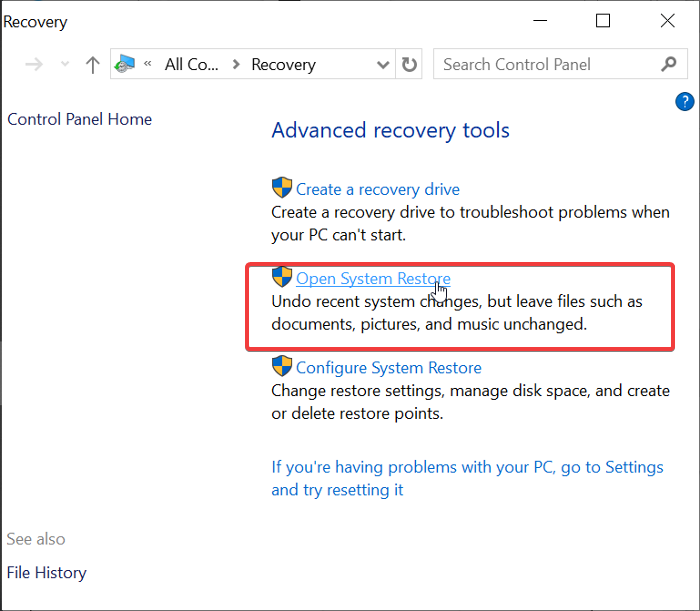
- Press the Windows key, search for recovery, and open the top result to access Control Panel's recovery tools.
- Select Open System Restore.
- Choose Recommended Restore or choose a different restore point, then click Next.
- If choosing a point manually, review the available points, their descriptions, and creation dates.
- Select a point from before the GPU driver update and click Next.
- Review the settings and click Finish to start restoration.
System Restore may affect some installed programs, so check which programs will be affected before proceeding.
Signs of a problematic GPU driver
Screen glitches, unusual colors, and tearing during games can indicate driver trouble, as can system crashes and poor performance. Updating the driver or returning to an earlier version often resolves these symptoms.
Why a driver update may fail
Background applications and ongoing Windows updates can interfere with installation. Close all applications and pause updates before trying again. Checking whether the driver is compatible with your operating system may also help identify installation problems.