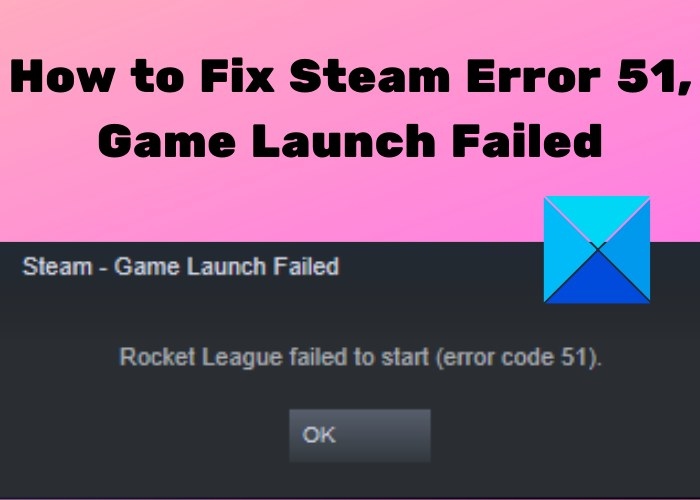
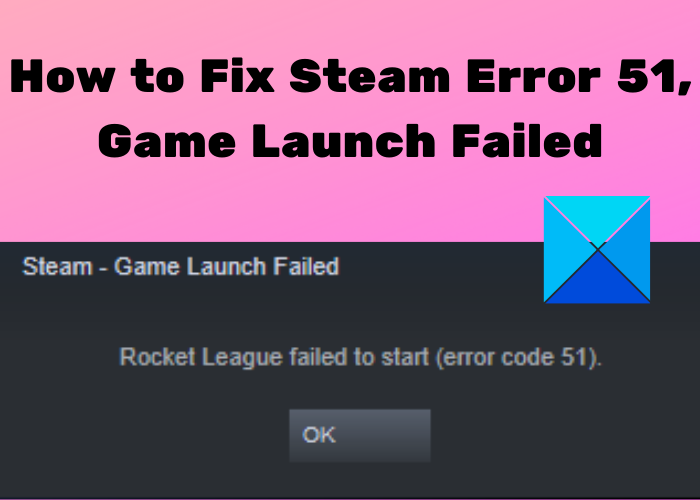
Steam error code 51, accompanied by “Game Launch Failed,” stops a game from opening. Possible causes include missing or damaged game files, third-party software conflicts—particularly antivirus interference—missing Microsoft Visual C++ Redistributable components, and corrupted Steam configuration files.
Verify the game files
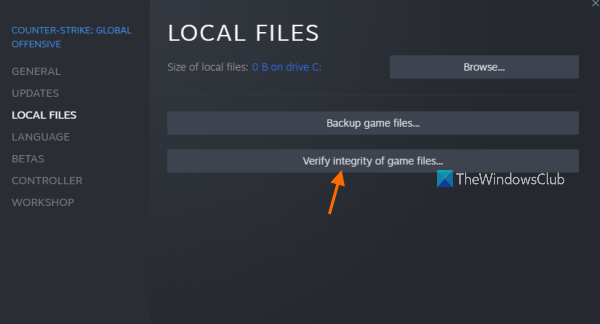
If only certain games fail, their files may be damaged. Steam can compare those files with copies on its servers and replace missing or corrupted files.
- Run Steam as an administrator and open the LIBRARY tab.
- Right-click the affected game and select Properties.
- Open Local Files and select Verify Integrity of Game Files.
- Wait while Steam checks the installation and replaces any problematic files.
- Close every Steam-related task in Task Manager, then restart Steam as an administrator.
Launch the game again to check whether error 51 has cleared.
Temporarily turn off your antivirus
Antivirus software can mistake Steam processes for threats and block them. Temporarily disable your antivirus and retry the game. If that resolves the error, add Steam to the antivirus exception list rather than leaving protection permanently disabled.
Remove conflicting third-party applications
Other installed applications may also interfere with Steam. Consider whether the error began after you installed a particular app. If you identify a conflicting program, uninstall it and try again.
Manually install DirectX and Microsoft Visual C++ Redistributable
Some Steam games need DirectX and Microsoft Visual C++ Redistributable. Steam normally installs these dependencies automatically, but an interrupted installation can leave them missing.
- Open File Explorer and navigate to:
C:\Steam\steamapps\common\<Steam-Game>\_CommonRedist\vcredist
Replace <Steam-Game> with the affected game's name. - Run the executables in that folder and let installation finish.
- Go to the following folder, again substituting the game's name:
C:\Steam\steamapps\common\<Steam-Game>\_CommonRedist\DirectX
Complete the DirectX installation. - Restart your PC and try launching the game through Steam.
Update your graphics drivers
Outdated or faulty graphics drivers can cause launch errors. If yours have not been updated recently, update them before testing the game again.
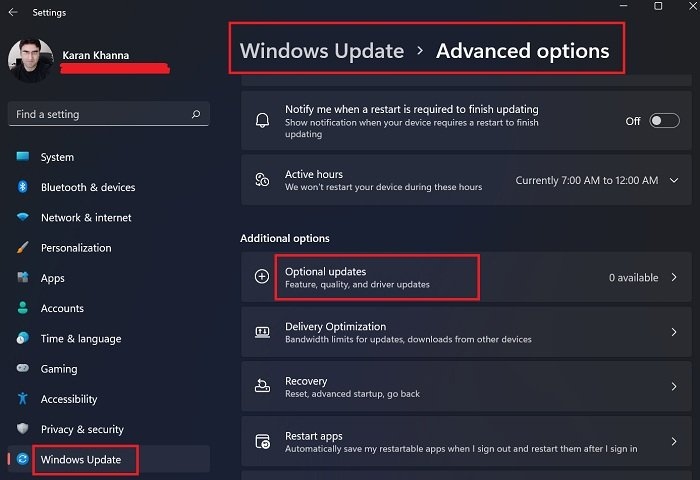
On Windows 11, you can install graphics drivers through Optional Windows Updates or obtain the latest drivers from your device manufacturer's official website. A third-party driver updater is another option for updating them automatically. Restart your PC after the update, then launch the game.
Reset the game configuration
Incorrect or corrupted engine configuration files can also trigger error 51. Flush Steam's configuration, then use the game's automatic configuration option:
- Completely close Steam through Task Manager.
- Press Windows + R to open Run.
- Enter:
steam://flushconfig
- If “Allow This Website to Open a Program” appears, select Allow.
- Restart the PC and open Steam.
- Open LIBRARY, right-click the affected game, and select Properties.
- On the General Tab, choose “Set Launcher Options”.
- Enter -autoconfig and press OK.
Try the game again. If the error persists, proceed to refreshing Steam's files.
Refresh the Steam files
This process removes Steam client configuration files so they can be reinstalled.
- Use Task Manager to close all Steam tasks and processes.
- Open the Steam installation directory in File Explorer.
- Select every file and folder except the steamapps folder and the Steam.exe application file.
- Press Delete to remove the selected items.
- Restart your system, then run Steam with administrator privileges and test the game.
What if Steam displays error code 53?
Error code 53 is a separate issue, usually occurring when Steam's servers cannot handle a request. Restart the game, reboot the device, and check your internet connection. If those steps do not help, check whether Steam's servers are down. Disabling your antivirus or changing the Download region are other possible fixes.