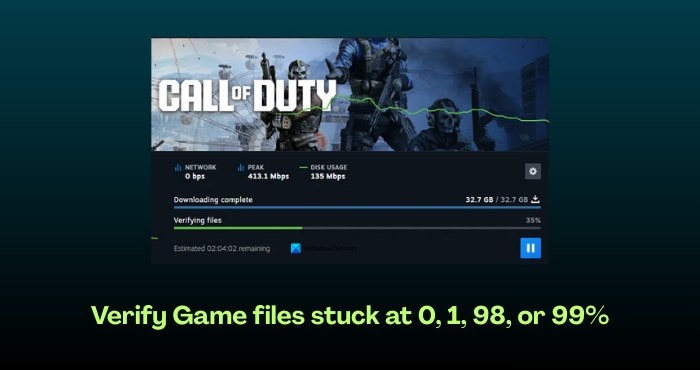
If game file verification stays at 0, 1, 98, or 99% in GOG, Steam, Fortnite, or another game on Windows, work through the fixes below. Before starting, run your gaming client as an administrator and check whether verification proceeds.
Check your internet connection
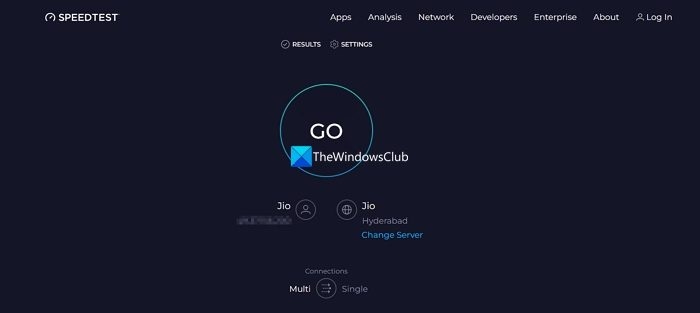
Steam and other gaming clients need a stable connection to download, verify, and install games. Slow speeds, intermittent disconnections, or an unstable connection can make verification appear stuck. Run a speed test and resolve any connection problems before continuing.
Clear the cache and restart the gaming client
Corrupted cache files or other cache problems can interfere with verification. Clearing the cache lets the launcher create fresh data.
For Steam, follow these steps:
- Click the Steam icon and open Settings.
- Select Downloads, then click Clear Cache beside Clear Download Cache.
Click Confirm in the Clear Download Cache prompt.
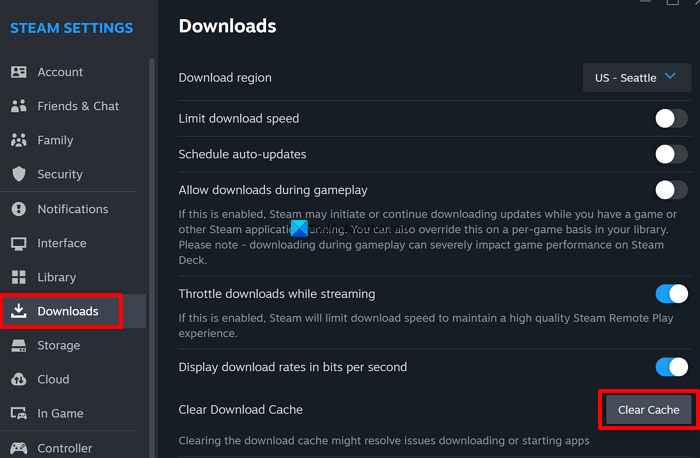
- Steam will sign you out. Sign in again with your credentials and check whether verification works.
To clear the Epic Games launcher cache on Windows:
- Open the Run dialog box, enter %localappdata%, and press Enter.
- In the AppData folder that opens, navigate to Epic Games Launcher, then Saved.
- Delete all folders named “webcache”, then relaunch the client.
Repair the Steam installation folder
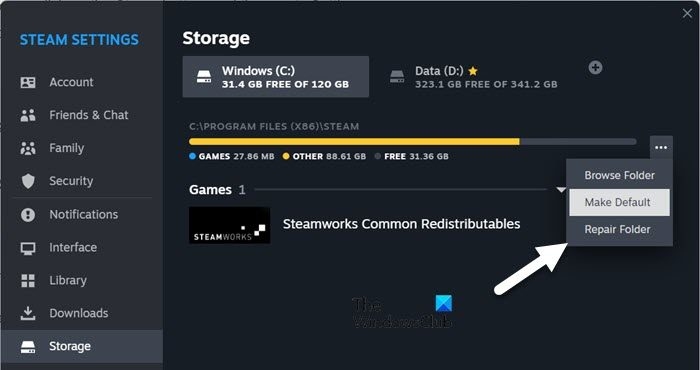
Files in Steam’s installation or downloads folder may cause lengthy verification stalls. Repairing the installation folder can address verification and other problems.
- Open Steam Settings and select Storage.
- Click the three-dot icon beside the installation folder and choose Repair Folder.
- Wait for the repair to finish, then check whether the issue is resolved.
Temporarily disable antivirus protection
Real-time antivirus protection may interfere with game file verification. Temporarily disable it while completing installation and verification, then turn it back on afterward.
If you use an antivirus program, open it and temporarily disable protection before verifying the files. For Windows Security, follow these steps:
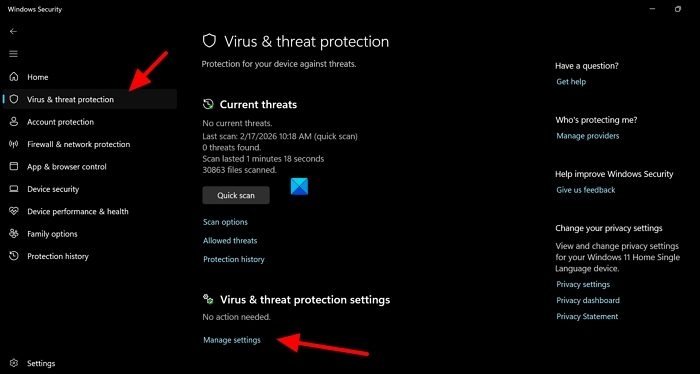
- Open Windows Security and select Virus & threat protection.
Click Manage settings.
Turn off the toggle under Real-time protection.
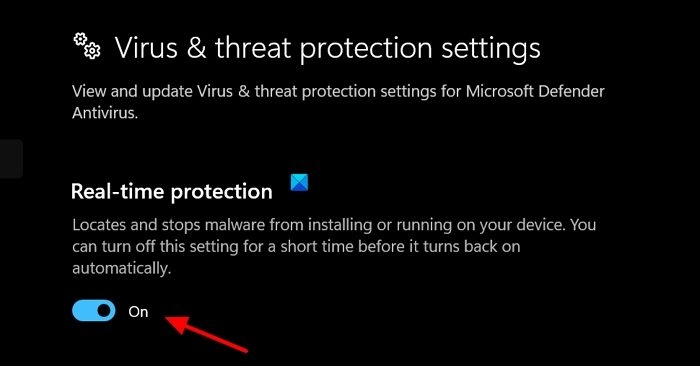
- Confirm the prompt, then verify the game files.
- Once verification succeeds, enable antivirus or real-time protection again to protect your PC from threats.
Change the download region
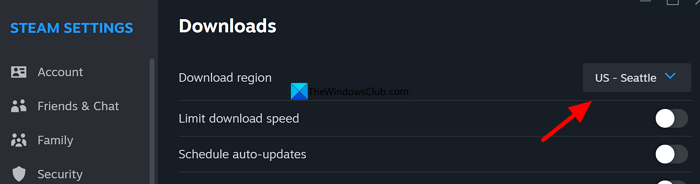
Large game files and a distant download region can make verification take a long time or appear stuck. Selecting a geographically closer region can speed up downloading and verification compared with a faraway region.
- Open Settings in Steam and select Downloads.
- Open the dropdown beside Download region and choose a location closer to you.
If you select another country, Steam may request an additional payment to unlock the region because licenses and permissions vary by country.
Reinstall the affected game or launcher
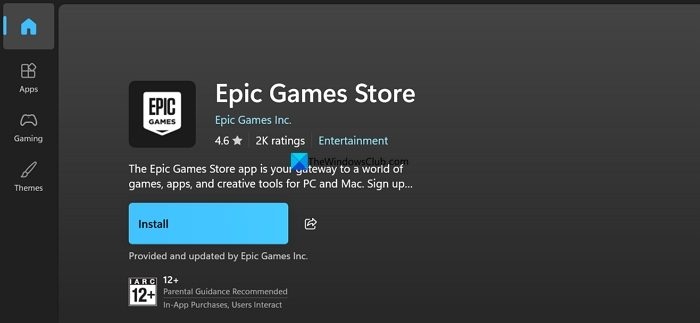
If the earlier fixes do not resolve the problem, uninstall the affected game or launcher. Reinstall it from an official or trusted source, such as its official website or the Microsoft Store, then sign in with your credentials and try again.
How long should verification take?
The time depends on the game’s size, available storage, and internet speed. Verifying and installing a game takes roughly an hour, although verification alone can take a few minutes to an hour. If progress remains at the same percentage for more than 30 minutes, there may be a problem that needs attention.
Can you speed up game file verification?
Make sure your internet connection is stable and that enough storage space is available for new files and cached data. Beyond resolving problems that arise, no additional action is needed while verification runs.