On Windows 11/10, you can move a full-screen game from the primary or secondary display to another monitor. The same approaches also apply to setups with more than two screens.
There are two methods: drag the game in windowed mode, or use Windows Settings. Dragging requires the game to support a resized window; the display-settings method works regardless.
Drag the game to another screen
While playing, press Alt+Enter. In supported games, this switches from full-screen to windowed mode without minimizing the game. Drag the resulting window onto the desired monitor. Not all games support this shortcut.
Similar monitors should require no changes. If their resolutions, refresh rates or other display characteristics differ, you may initially notice lag. Adjusting graphics-related settings may help.
Move the game through Windows Settings
This approach takes longer because you must change the display configuration and then restore it. First, minimize the full-screen game with Win+M or another shortcut supported by the game, then press Win+I to open Windows Settings.
Windows 11
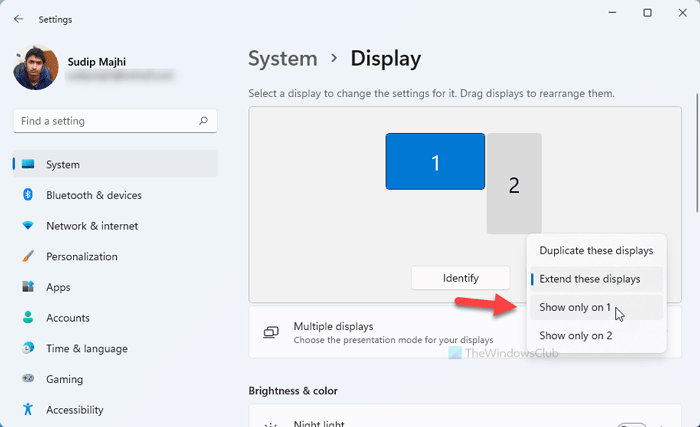
- Open Windows Settings with Win+I.
- Make sure the System tab is selected.
- Select Display on the right.
- Open the monitor settings drop-down list.
- Choose Show only on 1 or Show only on 2.
- Select Keep changes.
Windows 10
- Go to System > Display.
- Under Multiple displays, expand the drop-down list.
- Select the target screen using an option such as Show only on 1 or Show only on 2.
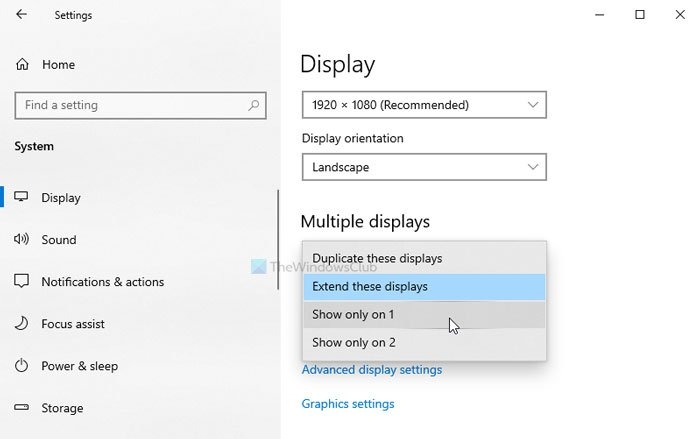
All content immediately moves to the chosen display. Return to the game and continue playing.
Afterward, minimize the game again and return to the same Windows Settings controls. Select Extend these displays to restore the extended desktop. The game window will remain on the selected screen, leaving the other monitor available for applications.
Choosing a monitor when launching a game
Windows 11 has no built-in setting for selecting a monitor as a game opens. You can, however, force an application to open on the primary monitor in Windows 11/10. Your graphics driver or card's control panel may also offer a monitor-selection option, depending on the card.
To play on the second monitor through Windows Settings, press Win+I, open System > Display and select Show only on 2 from the monitor drop-down. Here, 2 identifies the second display. With more than two monitors, identify the desired screen's number and choose its corresponding option.