If your Windows 11 or Windows 10 monitor dims or goes dark during full-screen games, brightness controls, power-saving settings, or graphics problems may be responsible.
Why the screen may dim
Windows can adjust brightness according to the light detected by the system's ambient light sensor. Adaptive Brightness, found mainly on laptops, responds to changes in room lighting. The OSD (On Screen Display) menu also offers an Adjust my screen brightness automatically option that you can switch on or off.
Other possible causes include auto-dimming enabled by default, power-saving settings, outdated drivers, or a damaged GPU.
Before troubleshooting
Check for Windows updates and install any available updates first. If Windows is already current and the dimming began after a recent update, try uninstalling that update.
The following fixes can be tried in no particular order. If none resolves the problem, a faulty GPU is likely; contact a PC hardware technician for diagnosis.
Restart the graphics driver
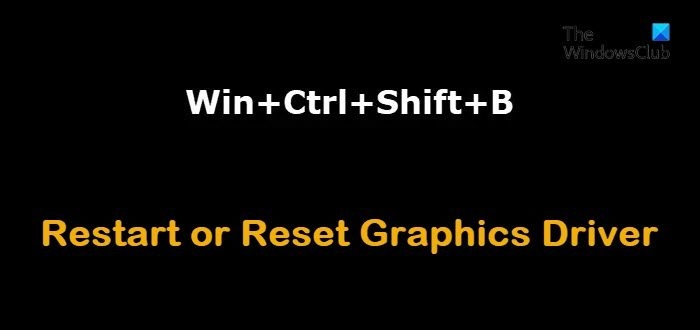
Restart your graphics driver, then check whether full-screen games still cause dimming. If they do, continue troubleshooting.
Turn off Adaptive Brightness
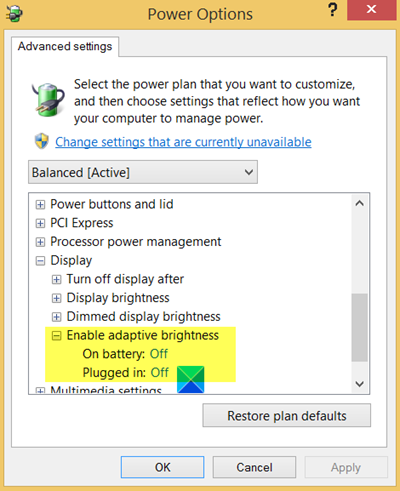
Disable Adaptive Brightness on your Windows 11/10 gaming laptop. If the screen continues to dim, try another fix.
Roll back or uninstall the graphics driver
If the problem followed a graphics driver update, roll back the driver. Alternatively, uninstall it through Command Prompt or use Display Driver Uninstaller.
Update the graphics driver
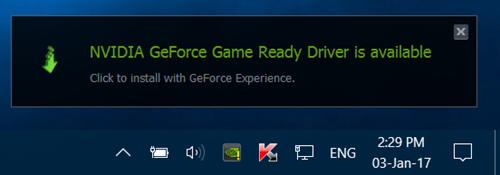
For an NVIDIA, AMD ATI video card, or Intel HD graphics, download the latest graphics driver from the manufacturer's website. Some manufacturers also offer automatic hardware detection.
Use a custom resolution and refresh rate
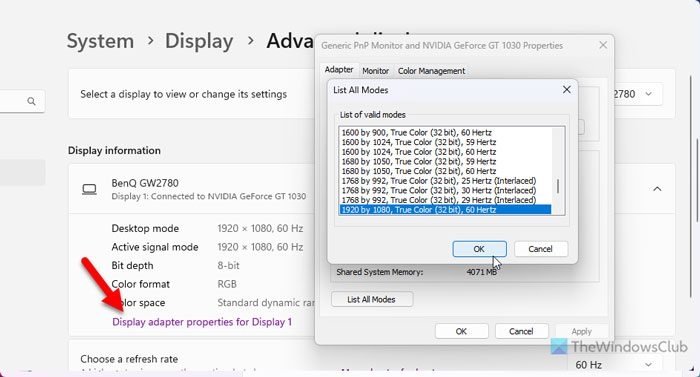
Set a custom screen resolution and refresh rate on your Windows 11/10 PC, then check the result.
Disable Power Throttling
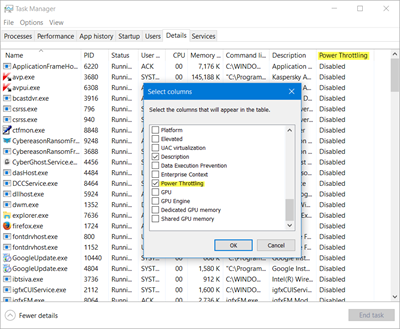
Turn off Power Throttling and see whether the screen brightness remains stable.
Disable Game Mode and Game Bar
Disable both Windows Game Mode and Game Bar. If neither change helps and Night light is enabled, turn it off as well and test again.
Disable Dynamic Backlight Control in BIOS
Dynamic backlighting changes an LCD screen's backlight intensity to increase contrast. To disable it:
- Boot the computer into BIOS.
- Expand Video in the left pane.
- On the right, find Dynamic Backlight Control and select Disabled.
- Save the changes.
- Restart the computer.